AI Chatbots7 min
Let an AI Sales Agent Research the Answer Without Letting It Send
29 oct 2026Leer Artículo →
One sentence in ChatGPT, and the reply left my WhatsApp. How to connect your WhatsTeam number to ChatGPT in about five minutes, with no code.
Este artículo aún no está disponible en tu idioma. Mostrando la versión en inglés.
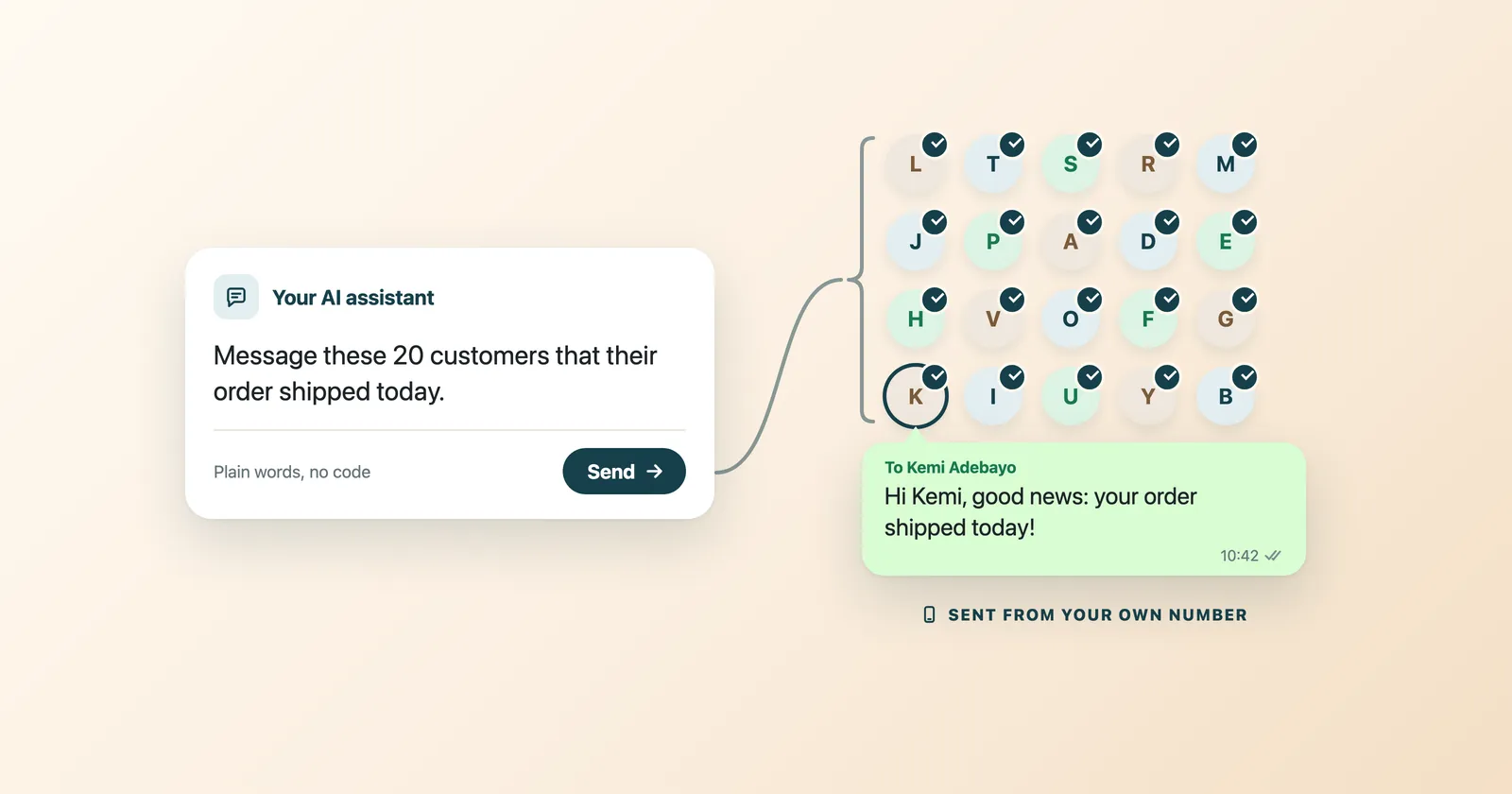
Last week I typed one sentence into ChatGPT: "Reply to the customer asking about the invoice and tell them it's on the way."
A few seconds later, the message left my WhatsApp. The customer got it. In my normal chat thread, with my number. I didn't open WhatsApp once.
I sat there for a second, genuinely surprised. I'd just run my business WhatsApp from inside a chat window I already had open all day. No new dashboard. No code. No copy-pasting between tabs.
Here's exactly how it works, and how to set it up in about five minutes.
There's a quiet little standard called MCP (Model Context Protocol). Think of it as a universal plug that lets an AI app talk to your other tools.
WhatsTeam connects your WhatsApp through MCP. So once you plug it in, your AI (ChatGPT, Claude, Cursor, claude.ai, whatever you use) can reach your real WhatsApp account and read, search, summarise, draft and send messages.
The key word is send. You're not just asking the AI questions about your chats. You can ask it to actually reply, and the message goes out from your WhatsApp.
If you run anything over WhatsApp (a shop, a freelance gig, support, sales), you already know the grind. Someone messages, you switch apps, you read, you think, you type, you switch back. All day.
Now the tool you're already living in can do the boring parts:
You stop being a copy-paste machine between your AI and your phone. The sorting, the drafting, the searching: it happens where you already work.
Three things, and you probably already have two of them:
That's it. No servers, no plugins to build.
First, grab what you need from WhatsTeam. Log in at app.whats.team, make sure your WhatsApp number is connected, and create an API key under Developers, then API keys. Keep it safe: it's the password to your WhatsApp. It's best to create a key used only for ChatGPT. If you ever want to cut ChatGPT off, you delete that one key and nothing else changes.
One honest heads-up before we start: adding your own tools to ChatGPT runs through its Developer mode, a feature for paid ChatGPT plans that OpenAI still calls beta. On a company workspace, an admin has to allow it first. ChatGPT shows a couple of cautious-looking warnings on the way. That's standard for any custom connector, not something specific to WhatsTeam. All you're plugging in is your own WhatsApp. Here's the whole thing.
1. Open Settings. Click your name in the bottom-left corner and choose Settings.
2. Go to Apps. In the left menu, open Apps.
3. Open Advanced settings. Scroll down and open Advanced settings.
4. Turn on Developer mode. Flip the switch on. This is what lets ChatGPT reach an outside tool like your WhatsApp.
5. Add WhatsTeam. Click Create app and give it a name (for example, "WhatsApp MCP"). Set the connection to Server URL and paste this address, with your API key in place of YOUR_API_KEY:
https://api.whats.team/mcp?key=YOUR_API_KEY
Set Authentication to No Auth, because the key in the address is your sign-in (picking OAuth won't work). If ChatGPT shows a Scan tools button, click it. Tick the box to confirm, and click Create.
6. You're live. WhatsApp MCP now shows up under your apps. Open a new chat and try: "Show me my unread WhatsApp chats." If it answers, you're connected.
Because that address contains your key, treat it like a password: don't paste it into shared documents or screenshots.
These are real prompts I've actually typed. No magic phrasing, just plain English:
That last one is my favourite. It drafts, I glance, I say "send the first two." Fast, but still mine.
Let me be straight, because this is where most posts oversell.
This is not a bot that runs your WhatsApp by itself 24/7 while you sleep. It doesn't decide on its own to message people. It acts when you ask it to. You stay in control: you can have it draft and wait for your okay, or send on command. The AI is a very fast assistant sitting next to you, not an autopilot.
If what you want is hands-off replies around the clock, WhatsTeam has automatic replies for that, and you set those up separately. But the thing I'm describing here is different, and honestly more useful day to day: your WhatsApp, on command, from the AI you already use.
If you live in WhatsApp for work, this genuinely changes your day. You can start free: create a WhatsTeam account, connect your number and run your first prompt in minutes. The trial lasts 14 days and you don't need a card.
Want the full walkthrough with every option, including Claude and Cursor? Read the MCP setup guide in the WhatsTeam help centre, or our guide to connecting WhatsApp to any AI agent.
I still open WhatsApp, of course. I just do a lot less in it now.
Herramientas
Recursos