Dieser Artikel ist noch nicht in Ihrer Sprache verfügbar. Die englische Version wird angezeigt.
Supervise your WhatsApp team from your phone
Who takes the next WhatsApp chat? If that call is usually yours, the team slows down whenever you step out. Questions wait under nobody's name, and a number that lost its connection can go unnoticed until a customer complains somewhere else.
Part of WhatsTeam's new phone layout is built for exactly that call. Sign in at app.whats.team with whatever browser your phone uses; the console rearranges itself for the small screen. Three places then do the supervising: Inbox for what has no owner, Overview for who is around and how each number is doing, and the chat's own menu for handing it to someone.
Read the tab bar
The bar at the bottom is made of icons, and only the open tab shows its name. From left to right:
- a tray, Inbox, with a red count when chats are waiting;
- a speech bubble, Chats;
- four squares, Overview, if you're an owner or an administrator. Supervisors and agents get an icon of two people there instead, Team, and a supervisor opens Overview from You;
- your own photo or initials, You, with a dot, or a moon when you've set yourself as unavailable.
To check in without typing the address every time, add it to your home screen. On an iPhone that's Safari's Share button, then Add to Home Screen; the shortcut carries WhatsTeam's name and icon. Open it from that icon and sign in there: on an iPhone, the shortcut doesn't share Safari's sign-in.
Back at your desk after using the phone, your computer may greet you with Your session is open in another browser. That's expected: you can have WhatsTeam open in only one browser, and the one you opened last keeps it. Click Use here on the computer to take it back.
Spot the chats nobody owns
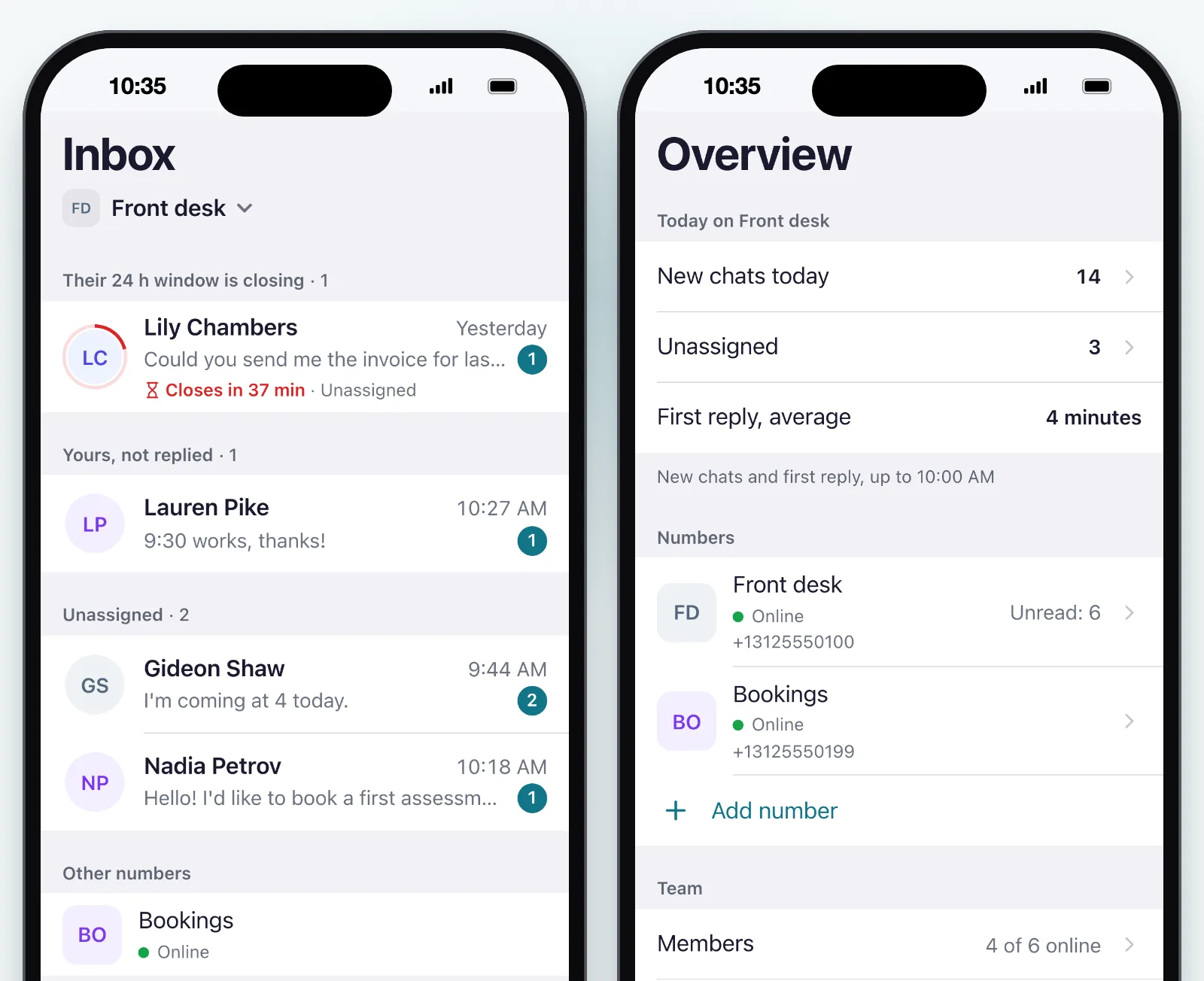
Inbox lists the chats where a customer is waiting for a reply, but only two kinds: the ones assigned to you and the ones nobody has taken. A chat a colleague already owns stays out, because answering it is their job. The count on the tray adds up everything inside.
The order follows urgency:
- Their 24 h window is closing appears only on a WhatsApp Business API number. It holds the waiting chats, yours or ownerless, whose window closes within three hours, soonest first. Once a window closes, only an approved template reaches that customer.
- Yours, not replied comes next, longest wait first.
- Unassigned holds every other waiting chat without an owner, also longest wait first.
So read it from the top. Most chats without an owner sit under Unassigned, but one that is about to lose its window moves up into the first group. On an API number, a chat with no owner whose window has already closed drops out of Inbox altogether: you'll still find it in Chats, and it still counts in the Unassigned figure on Overview.
If you run more than one number, Other numbers at the bottom lists the rest with their state and their unread chats; tap one to switch. To look over your colleagues' work as well, open Chats, tap More and pick Not replied or Assigned to others.
See who can take it
On Overview, the Team group starts with Members, which tells you how many people are online, for example "4 of 6 online". Tap it for the team of the number you're on, grouped as Online and Unavailable, plus Invited while someone hasn't accepted an invitation yet. Each person shows their role and how many chats they have open; for someone offline with nothing open, when they were last seen.
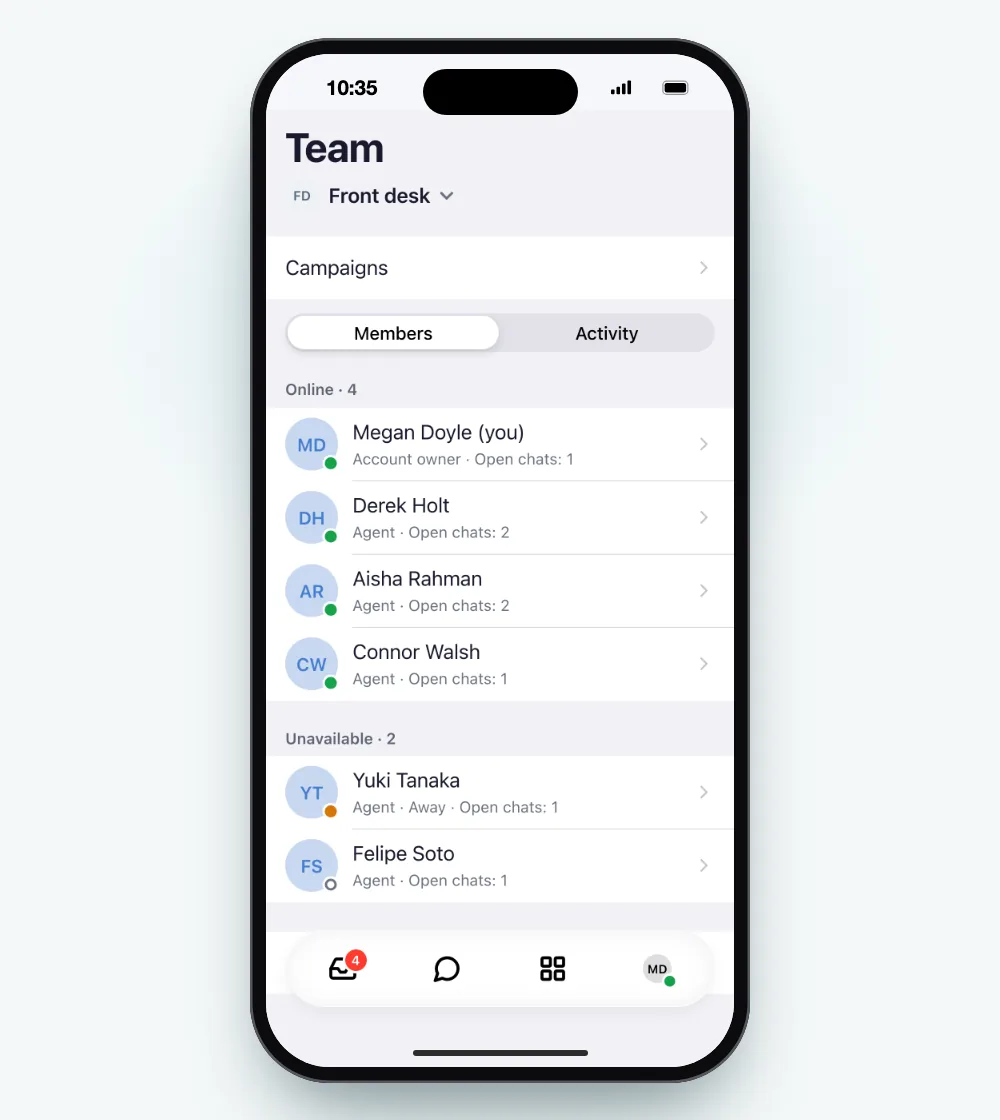
Two questions decide most handovers: who is actually there, and who already has enough on their plate. This list answers both.
Beside Members, Activity gathers the mentions of you under For you and the rest of the number's events under On this number. Each entry opens the chat or the number it refers to.
Give the chat an owner
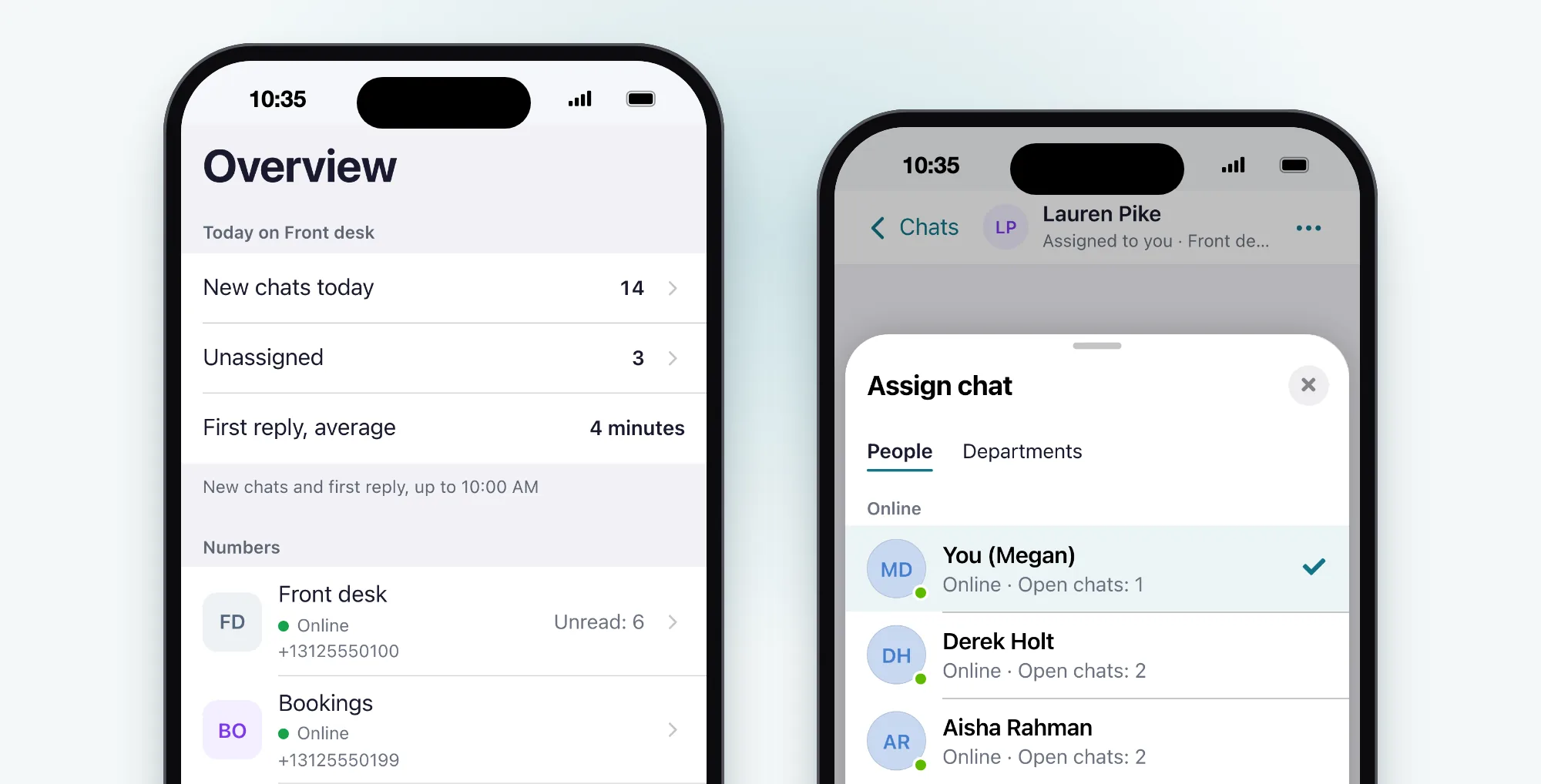
In any chat, the ⋯ at the top has Assign chat, or Assign to someone else when the chat already belongs to someone. The sheet that slides up has People and, when your number uses departments, Departments. People come split into Online and Not online, each with their open chats, so you can spread the load without leaving the conversation.
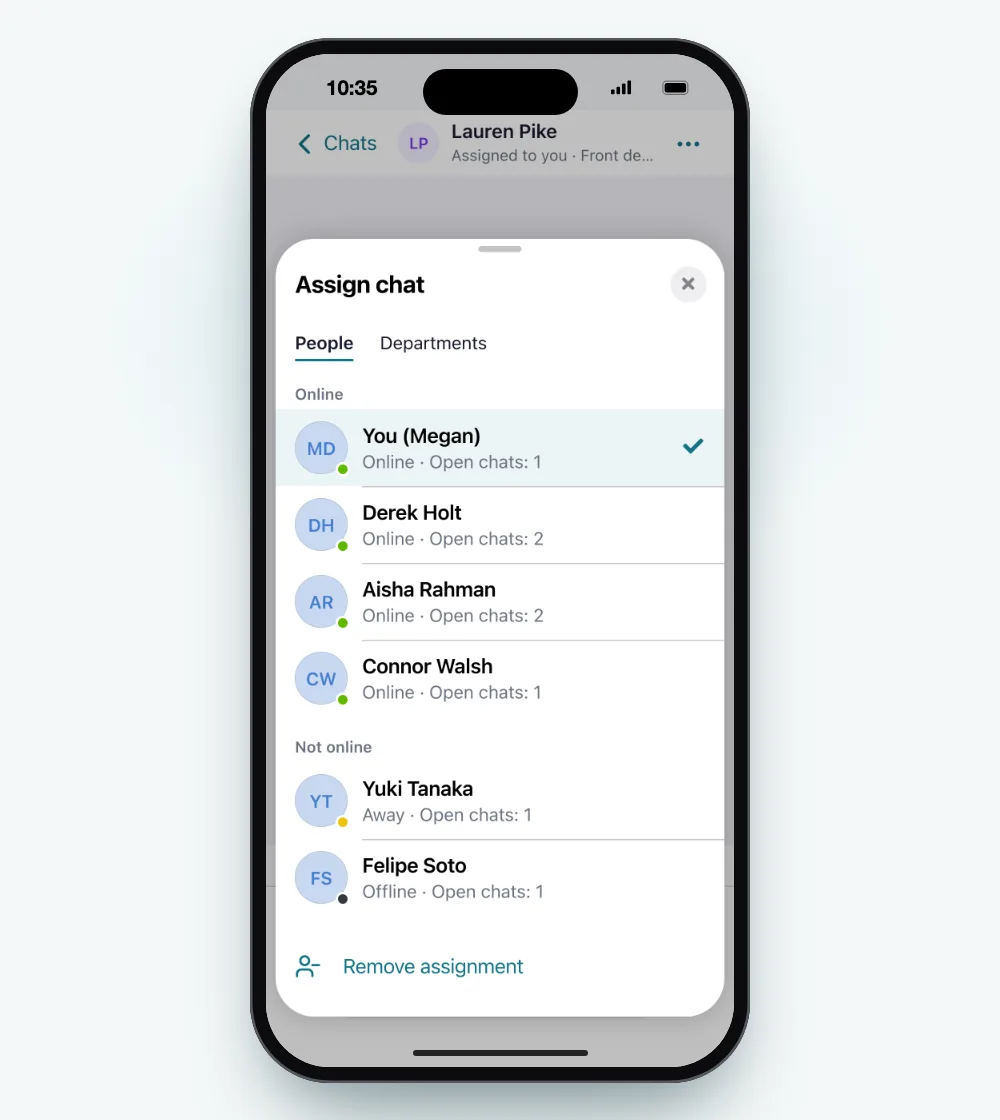
Tapping a name assigns the chat and shows a short confirmation with Undo, in case you picked the wrong person. Remove assignment, at the foot of the same sheet, sends an owned chat back to having no owner.
If you'd rather answer one yourself, swipe it left in Inbox's Unassigned group and tap Assign to me. And when whoever takes over needs context, write it down first: switch the box under the chat from Reply to Note, and that line stays inside the team.
Which of these you can use depends on your role and on the permissions set for the number. Without permission to assign chats there, the option doesn't appear.
Catch a number in trouble
Overview also lists your numbers, just below today's figures. A word and a coloured dot give each one's state (Online, Connecting, Offline, Not connected, Off by operating hours and a few more), next to its unread chats. Tap one to open its page and see what it needs.
When the number you're working on can't be used, Chats says so in place of the list and keeps the number selector at the top, so you can move to another one. For a number that isn't connected yet, the button is Manage number, which opens its page. Agents, and anyone without permission to connect that number, don't get that button; they're asked to have an administrator connect it.
At the top of Overview, Today on and the number's name lead to three rows. New chats today and First reply, average appear when you can see that number's analytics; they're refreshed every hour, and the line below says up to what time. Unassigned, between them, counts the chats with no owner right now, and tapping it opens Chats on exactly those.
Mark yourself unavailable without leaving chats stranded
Sometimes the right move from the phone is to say you're out. Open You and, under Availability, tap Unavailable. Your teammates see it in the team list and when they assign a chat, and Inbox keeps a reminder at the top, "Unavailable: you don't get new chats.", with Make me available for when you're back.
On numbers with automatic assignment, part of Business and Enterprise, the setting does more than inform the team: depending on the number's settings, new chats can stop reaching you while you're unavailable, so none of them waits for someone who isn't there.
Set the team up once, then follow it from anywhere
A few things still open on a computer: Flows, and adding a new number. On the phone they show a sheet that says they need a bigger screen and offers to email you the link.
If your team isn't on WhatsTeam yet, the team inbox page shows how one shared number works, with an owner on every chat and notes that stay internal. Open an account, connect the number on your computer and invite the people who answer it. From then on, the phone is enough to keep their queue moving.