WhatsApp MCP Server: Connect AI Assistants to WhatsApp (2026 Guide)
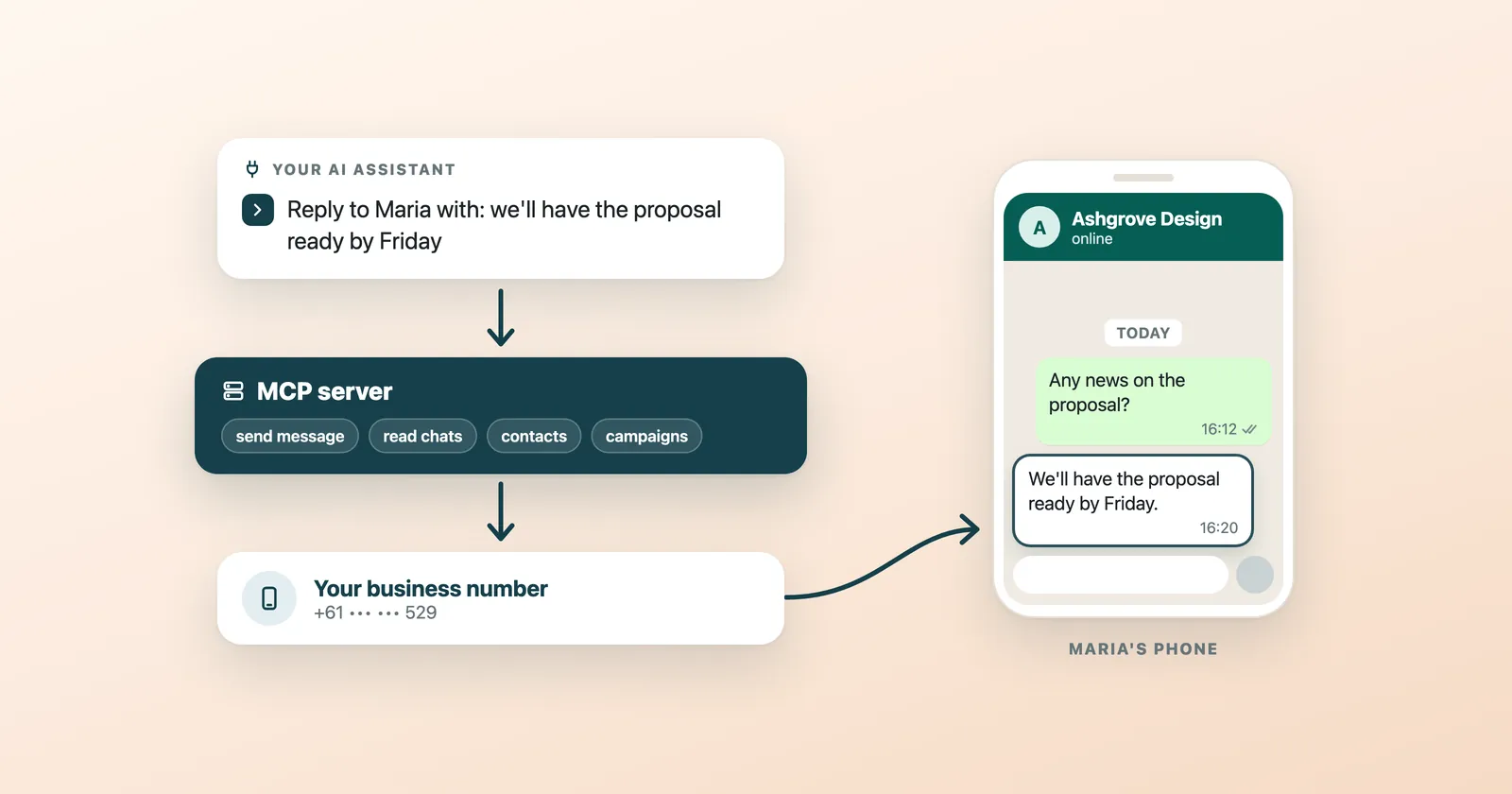
AI assistants like Claude and ChatGPT are no longer limited to answering questions. With MCP, they can take real actions in the tools you use every day, including WhatsApp.
This guide covers what MCP is, how a WhatsApp MCP server works, and how to set one up with WhatsTeam so your AI assistant can read messages, send replies, manage contacts, and trigger campaigns, all without leaving the AI interface.
What Is MCP (Model Context Protocol)?
MCP stands for Model Context Protocol. It is an open standard created by Anthropic (the company behind Claude) that lets AI assistants connect to external tools and take actions in them.
Before MCP, AI assistants could only work with text you pasted into them. If you wanted Claude to help with a WhatsApp conversation, you had to copy the messages, paste them into Claude, get a response, and then copy it back. MCP removes that friction entirely.
Here is how it works at a high level:
- AI Assistant (Claude, ChatGPT, Copilot) sends a request through MCP
- MCP Server translates that request into an API call
- External Tool (WhatsApp, via WhatsTeam) executes the action and returns the result
- AI Assistant receives the result and continues the conversation
MCP is gaining adoption fast. Claude Code, Claude Desktop, ChatGPT, VS Code Copilot, and Cursor all support MCP connectors. The ecosystem is growing every week as more tools publish their own MCP servers.
What Is a WhatsApp MCP Server?
A WhatsApp MCP server is the bridge between an AI assistant and your WhatsApp account. It exposes your WhatsApp capabilities (messages, contacts, campaigns, groups) as structured tools that an AI assistant can understand and use.
Without an MCP server, your AI assistant has no way to interact with WhatsApp. With one, you can say things like:
- "Show me my unread WhatsApp messages"
- "Reply to Maria with: we'll have the proposal ready by Friday"
- "Send our new product announcement to the VIP customer group"
- "How many messages did the support team handle this week?"
The AI assistant understands the intent, calls the right MCP tool, and executes the action on your WhatsApp account.
What Can You Do with WhatsApp + MCP?
Here is a concrete breakdown of what becomes possible when you connect an AI assistant to WhatsApp through MCP:
Read and Respond to Messages
Your AI assistant can pull recent messages from any chat, search across conversations, and send replies, all from a single prompt. No tab switching, no copy-pasting.
Manage Contacts and Groups
Create groups, add participants, update contact labels, and organize your WhatsApp contacts using natural language commands.
Trigger Campaigns
Launch bulk messaging campaigns, schedule delivery, and track results. Tell your AI assistant "send the April promo to all contacts labeled VIP" and it handles the rest.
Analyze Conversations
Ask your AI assistant to summarize recent conversations, identify unhappy customers, track response times, or find messages about a specific topic.
Build Custom AI Workflows
Developers can chain MCP tools together to build sophisticated automation: a support agent that reads incoming messages, classifies them, drafts responses, and escalates when needed, all running through the AI assistant.
How WhatsTeam's MCP Server Works
WhatsTeam provides a production-ready MCP server that connects your WhatsApp Business account to any compatible AI assistant.
The architecture is straightforward:
Your AI Assistant (Claude, ChatGPT, Copilot, Cursor)
        ↓ MCP Protocol
WhatsTeam MCP Server
        ↓ REST API
WhatsTeam Platform → WhatsApp Business API
When you tell Claude "send a WhatsApp message to +1234567890", here is what happens:
- Claude recognizes this as a WhatsApp action
- It calls the
send_whatsapp_messagetool through MCP - The WhatsTeam MCP server receives the request
- It calls the WhatsTeam API to send the message
- WhatsApp delivers the message
- Claude receives confirmation and tells you it is done
The MCP server handles authentication, rate limiting, and error handling. You interact with your AI assistant in plain language: the technical complexity stays hidden.
What Tools Are Available?
The WhatsTeam MCP server exposes a comprehensive set of tools:
| Category | Capabilities |
|---|---|
| Messages | Send, read, search, reply, forward, react |
| Chats | List, filter by status, search by name, get unread |
| Contacts | Manage labels, groups, contact types |
| Campaigns | Create, schedule, manage recipients, track delivery |
| Groups | Create, update, manage participants, permissions |
| Channels | List, create, join, manage channel messages |
| Files | Upload, download, manage media attachments |
| Teams | Manage agents, departments, assignments |
| Analytics | Message statistics, chat activity, delivery tracking |
Supported AI Tools
WhatsTeam's MCP server works with any AI tool that supports the Model Context Protocol:
Claude (Anthropic)
Claude has the deepest MCP support. You can connect through:
- Claude.ai: via the Connectors feature in the web interface
- Claude Desktop: via the desktop app's MCP settings
- Claude Code: via CLI configuration for developer workflows
Claude's ability to reason through multi-step tasks makes it particularly effective for WhatsApp automation. It can handle complex requests like "find all unread messages from today, summarize them, and draft replies" in a single prompt.
ChatGPT (OpenAI)
ChatGPT supports MCP through its plugin and connector ecosystem. Connect the WhatsTeam MCP server to give ChatGPT direct access to your WhatsApp conversations and tools.
VS Code Copilot
For developers building WhatsApp-integrated applications, VS Code Copilot can use the WhatsTeam MCP server to test API calls, debug message flows, and interact with WhatsApp directly from the editor.
Cursor
Cursor's MCP support lets developers connect WhatsApp tools alongside their codebase. Useful for building and testing WhatsApp bots, automations, and integrations without leaving the IDE.
Setting Up WhatsApp MCP with WhatsTeam
Step 1: Get Your WhatsTeam API Key
You need a WhatsTeam account on any plan. API access and the MCP server are included in every plan, Starter too.
- Log in to app.whats.team
- Go to Settings then API Keys
- Create a new API key or copy an existing one
- Keep this key secure: it grants full access to your WhatsApp account
No account yet? Sign up here: API access comes with every plan.
Step 2: Install the MCP Server
The installation depends on your AI tool. Visit whats.team/mcp for detailed, tool-specific setup instructions.
For Claude Desktop, the general process is:
- Open Claude Desktop settings
- Navigate to the MCP / Connectors section
- Add the WhatsTeam MCP server URL
- Enter your API key when prompted
For Claude Code (CLI):
# Add the WhatsTeam MCP server to your configuration
# See whats.team/mcp for the exact command and server URL
Step 3: Connect to Your AI Tool
Once the MCP server is configured, your AI tool will discover the available WhatsApp tools automatically. You should see WhatsApp-related capabilities appear in your AI assistant's tool list.
Step 4: Start Using AI with WhatsApp
Try a simple command first to verify the connection:
- "List my recent WhatsApp chats"
- "Show me unread messages"
- "Send a test message to [your own number]"
If the AI assistant returns results from your WhatsApp account, the connection is working. You are ready to build real workflows.
Use Cases
Customer Support Automation
Connect Claude to your WhatsApp support inbox. It can:
- Read incoming customer messages in real time
- Draft contextual responses based on conversation history
- Escalate complex issues to human agents
- Track resolution times and satisfaction patterns
A small support team handling hundreds of daily WhatsApp conversations can use MCP to triage, draft, and respond faster, without building a custom bot.
Sales Lead Qualification
Your AI assistant can monitor incoming WhatsApp leads and:
- Classify messages by intent (pricing inquiry, demo request, complaint)
- Pull relevant product information to draft personalized responses
- Tag and organize contacts based on conversation content
- Trigger follow-up campaigns for leads that go cold
Internal Operations
Use MCP for internal team coordination over WhatsApp:
- Send daily reports and summaries to team groups
- Collect status updates from field teams
- Broadcast company announcements
- Track message delivery and read receipts
Developer Workflows
Developers building WhatsApp integrations can use MCP to:
- Test API calls directly from their IDE (VS Code, Cursor)
- Debug message delivery issues in real time
- Prototype chatbot flows using natural language
- Inspect conversation data without building a custom dashboard
Frequently Asked Questions
Is MCP the same as the WhatsApp API?
No. The WhatsApp API is the underlying interface that WhatsTeam uses to communicate with WhatsApp. MCP is a layer on top that lets AI assistants use that API through natural language. Think of MCP as the translator between your AI assistant and the WhatsApp API.
Do I need to code anything?
No coding is required for basic usage. You configure the MCP server once, and then you interact with WhatsApp through your AI assistant using plain language. Developers can go deeper by chaining tools and building custom workflows.
Is my data secure?
The MCP server communicates over encrypted connections. Your API key controls access: only AI sessions with your key can interact with your WhatsApp account.
Which WhatsTeam plan do I need?
MCP access, API access and webhooks are included in every plan: Starter, Business and Enterprise. See whats.team/pricing for full plan details.
Can I use MCP with multiple AI tools at the same time?
Yes. Your API key works across all supported AI tools. You can have Claude handling customer support while a developer uses Cursor for testing, both connected to the same WhatsApp account through separate MCP sessions.
Get Started
WhatsApp MCP is still an emerging technology, and WhatsTeam is one of the first platforms to offer a production-ready MCP server for WhatsApp. Getting in early means you can build competitive advantages before this becomes mainstream.
Here are your next steps:
- WhatsTeam MCP Documentation: detailed setup guides for every supported AI tool
- WhatsApp API Documentation: full API reference for developers
- Pricing Plans: MCP access is included in every plan
- Create Your Account: get started in minutes