Auto-resolve WhatsApp chats when you use automatic replies
Your away and welcome messages count as answers. Set WhatsTeam to resolve quiet chats and keep open the ones only your away message has answered.
W
WhatsTeam28 ottobre 2026
Questo articolo non è ancora disponibile nella tua lingua. Mostriamo la versione in inglese.
Condividi questo articolo:
Auto-resolve WhatsApp chats when you use automatic replies
A home-cleaning company, closed in the evenings and at weekends (an invented example). It's Saturday, 10:14, and a customer writes: "Can you do a deep clean of a three-bedroom flat next Friday?" The away message answers straight away: "Thanks for your message! We're closed until Monday at 9 and we'll reply then."
That's a booking, and nobody has read it yet.
WhatsTeam can auto-resolve the chats that are over: the ones where you replied and the customer went quiet. Your team then starts each day with only the conversations that still need a person. Resolved chats aren't deleted, and the customer isn't told anything.
If you use automatic replies, set it up the way this guide shows. With a short time like 24 hours, the Saturday booking above would be resolved on Sunday, before anyone had read it.
Why automatic replies need special care
WhatsTeam decides that a chat is over by looking at who sent the last message. In the booking above, that's you: the away message is automatic, but it's yours. The chat looks like one where you're waiting for the customer.
Every automatic reply works this way: welcome, away, "we are busy" and follow-up. If your team answers new customers within a day or two, a time of 3 days covers the welcome and busy messages. The away message is different, because it's sent precisely when nobody can answer, sometimes for days.
So the away message gets a label, Needs a reply, and WhatsTeam never resolves a chat that has it. When someone on your team answers that customer, they remove the label.
Before you start
Auto-resolve comes with the Business and Enterprise plans. See plans and prices.
The account owner, an admin or a supervisor sets it up, for one WhatsApp number at a time.
Step 1: Create two labels
Open WhatsTeam and, on the dashboard, click your WhatsApp number. A menu opens on the left. Go down past Quick replies to Labels, click Create label and create:
Needs a reply, for chats only your away message has answered.
Closed by inactivity, for chats WhatsTeam resolves, so you can find them later.
Step 2: Make the away message add the label
In the same menu, click Automatic replies and open Out of business hours message (that's your away message).
Near the end of its settings, in Add labels to the automatically replied chats, type Needs a reply, pick it, and save the away message.
While you're on that page, see whether the follow-up message is on and how long it waits. You'll need that number next.
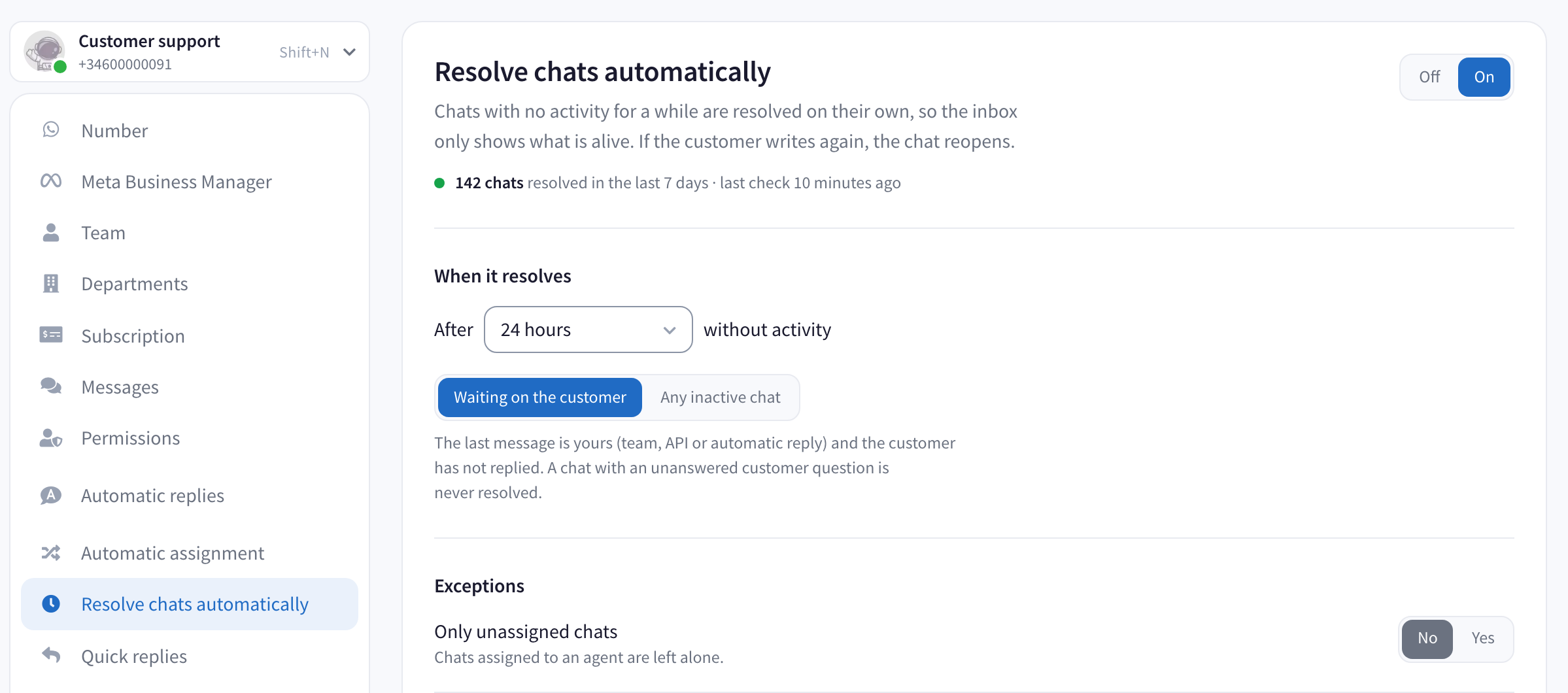
In the menu, click Resolve chats automatically, then On.
Under When it resolves, pick 3 days. The list offers 6, 12, 24 and 48 hours, then 3, 7, 14 and 30 days. If your follow-up waits 3 days or more, choose a longer time than the follow-up's (7 days for a 3-day follow-up), so the follow-up goes out before the chat is resolved.
Keep Waiting on the customer. Don't switch to Any inactive chat: that one also resolves chats where the customer wrote last and nobody replied.
The Resolve chats automatically page, turned on, waiting on the customer. The line under the options says the last message can be from your team, another tool connected to the number or an automatic reply
Read the grey line under Waiting on the customer in that screenshot (taken on a number already running with 24 hours). It says the last message can be an automatic reply, and that a chat with an unanswered customer question is never resolved. "Unanswered" there means no reply at all: a question your away message answered counts as answered. That's why step 2 matters.
Closed two days in a row? Count the hours. From Saturday at 18:00 to Tuesday at 9:00 is 63 hours, under 3 days, so a customer who wrote just before closing and only got the welcome message is still waiting for you on Tuesday morning.
Step 4: Exclude the label
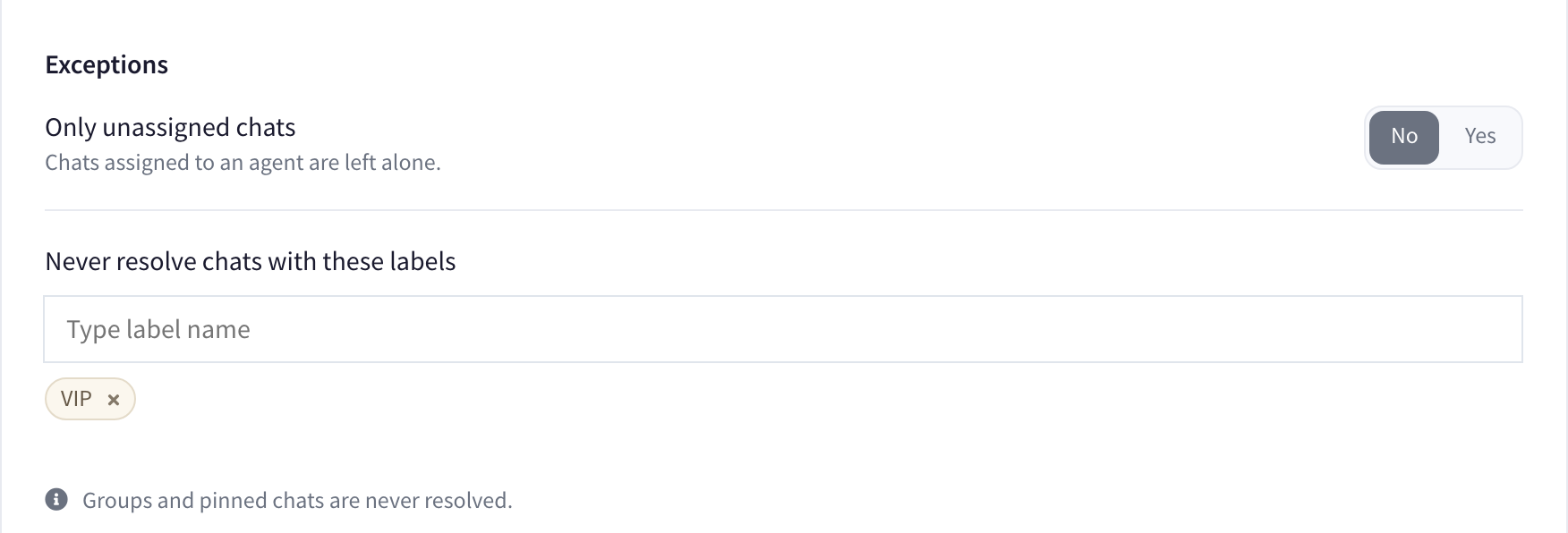
Under Exceptions:
Only unassigned chats:No, so it also resolves finished chats that someone on your team has. Don't let the grey text under that switch confuse you: it describes Yes.
Never resolve chats with these labels: add Needs a reply, and any label that must always stay open, such as VIP. In the picture below, Needs a reply would sit next to VIP.
The Exceptions section with Only unassigned chats on No and the VIP label in Never resolve chats with these labels
Step 5: Decide what happens to resolved chats
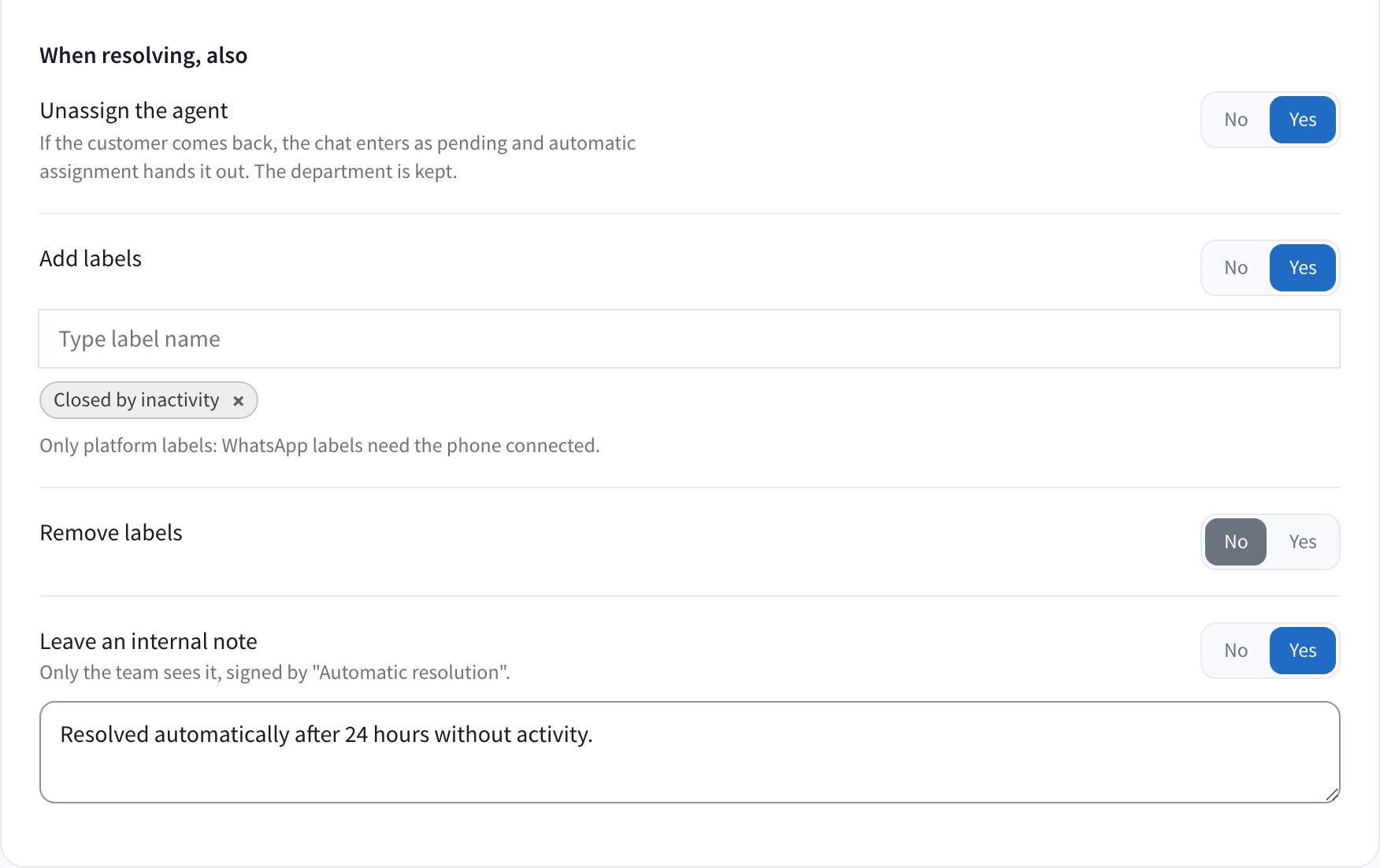
Under When resolving, also:
Unassign the agent:Yes. A customer who writes again comes back without an agent, and anyone can pick them up (or your automatic assignment hands them out).
Add labels:Yes, with Closed by inactivity. The "platform labels" the screen mentions are labels made in WhatsTeam, like both of yours.
Remove labels: leave it on No.
Leave an internal note:Yes, and replace the suggested text with your own, for example "Resolved automatically after 3 days without activity." The note doesn't update itself if you change the time later.
When resolving, also: unassign the agent, add the Closed by inactivity label and leave an internal note
Step 6: Save on a weekday, after the weekend's messages are answered
Chats your away message answered before step 2 don't carry Needs a reply. So save on a weekday, once your team has replied to everyone who wrote while you were closed. Chats that only got an automatic reply still show as unread, so an inbox with no unread chats left is your sign.
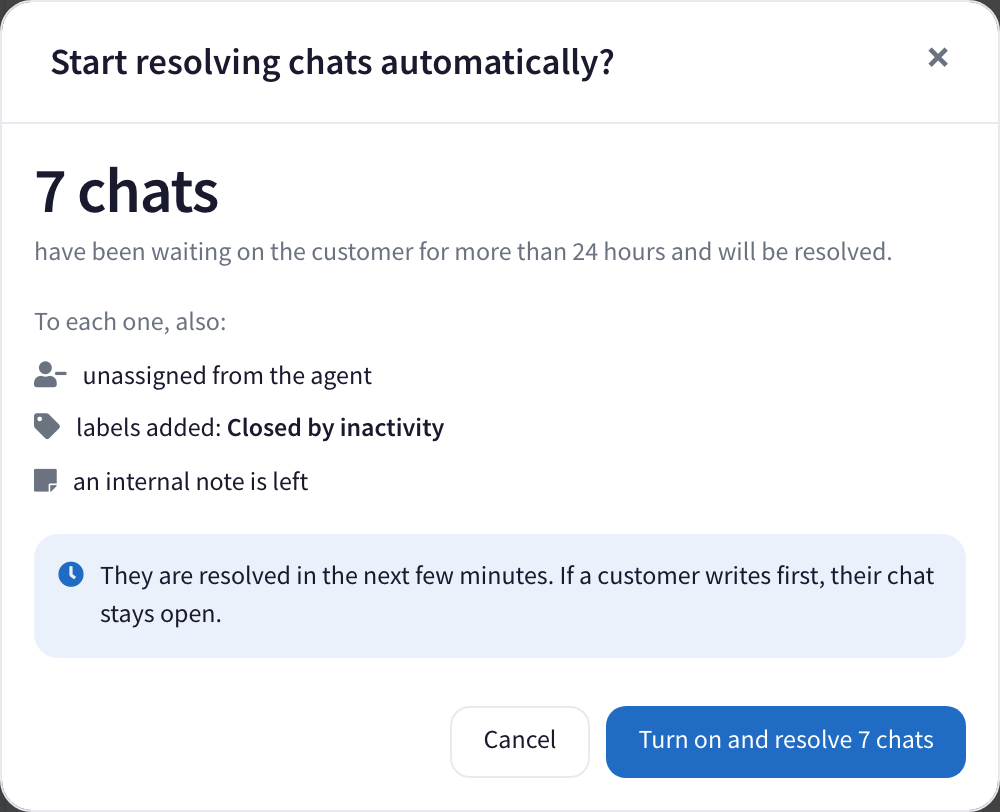
Click Save changes. If no chat matches yet, it just saves. Otherwise WhatsTeam shows how many chats it's about to resolve and what it will do to them.
The confirmation: 7 chats waiting on the customer for more than 24 hours will be resolved, each unassigned, labelled and with a note
Click the blue button, Turn on and resolve followed by that number. Within minutes those chats move to Resolved, and from then on WhatsTeam checks every few minutes.
What changes for whoever answers
Whoever answers a chat with Needs a reply removes the label.
If someone forgets, the chat simply stays open, which is the safe way round. And every morning after a closure, the label filter in your chat list, set to Needs a reply, shows the customers who may have only heard from the robot. Answer those first.
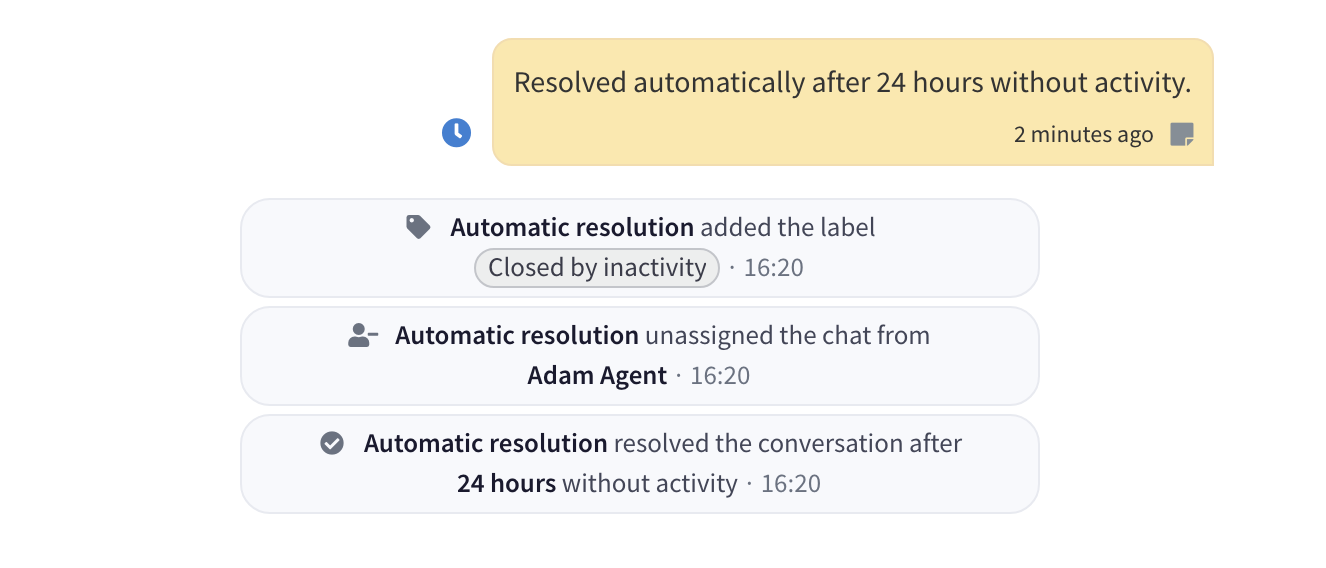
Right after saving, and again after your first weekend, filter by Closed by inactivity and open a few chats. Automatic replies carry a small robot icon, so it's quick to see whether a person ever answered. If a customer only got the robot, click Unresolve chat, reply, and check the label is set on the away message.
Questions
Does the customer get a message when a chat is resolved?
No. If they write again, the chat comes back to your inbox as a new message.
The page warns me about my follow-up message.
Your time isn't longer than the follow-up's, so the chat could be resolved first and the follow-up would never go out. Pick a longer time. The follow-up then goes out, counts as your message and restarts the clock.
In our busiest weeks, first replies can take more than 3 days.
Raise the time to 7 days for those weeks, then go back to 3. Before shortening it, WhatsTeam shows you how many chats the change would resolve.
We close for two weeks in August.
Nothing to change here, as long as your away message is set to go out on those dates. Customers who write during the closure get it, and the Needs a reply label with it, so they wait for you.
I'd rather a returning customer went back to the same person.
Leave Unassign the agent on No. The chat is still resolved, but it stays with its agent.
How do I switch it off?
Click Off, then Save changes. Chats already resolved stay resolved.
Turn it on this week
New to WhatsTeam?Sign up and connect your WhatsApp number to the team inbox.
Create the two labels and add Needs a reply to your away message.
On a weekday, turn on auto-resolve with 3 days and confirm.
Tell your team to remove Needs a reply when they answer.
Connect WhatsApp to HubSpot, Salesforce, Pipedrive or Zoho CRM with the WhatsTeam n8n node or API: what works today, a worked example and common fixes.
WhatsApp Business App only supports 5 devices. Learn how to add unlimited agents to one WhatsApp number using the Business API and a team platform like WhatsTeam.