Tutorials15 min read
How to Follow Up on WhatsApp: 18 Messages and the Timing That Works
Oct 29, 2026Read Article →
Everything you need to know about WhatsApp team inbox. Setup guide, best practices, and how to manage multi-agent conversations.
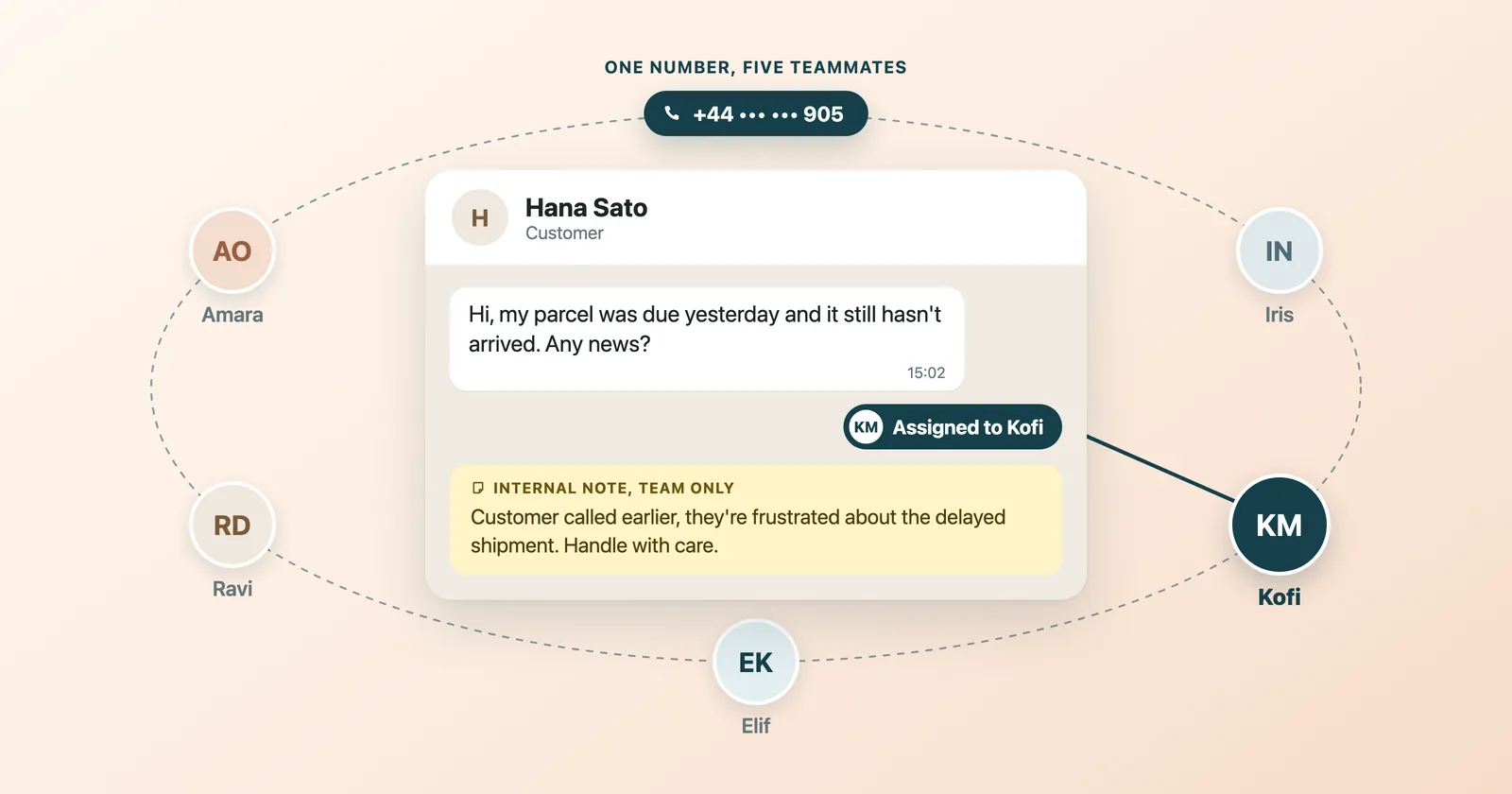
Your business has one WhatsApp number, but five agents need to handle customer conversations. The WhatsApp Business App doesn't support this. You need a team inbox -- a shared workspace where multiple agents manage WhatsApp conversations from a single number without stepping on each other's toes.
This guide covers everything about WhatsApp team inboxes: what they are, why you need one, the features that matter, and how to set one up with WhatsTeam in under 15 minutes.
A WhatsApp team inbox is a shared workspace built on top of the WhatsApp Business API that lets multiple agents handle customer conversations from a single WhatsApp number simultaneously.
Think of it like a shared email inbox (Front, Help Scout, Zendesk), but for WhatsApp. Every agent sees all incoming conversations, conversations get assigned to specific agents, and managers have visibility into response times, resolution rates, and agent performance.
The free WhatsApp Business App is designed for one person. You install it on one phone, link up to 4 additional devices, and that's it. There's no way to:
The WhatsApp Business API, accessed through a platform like WhatsTeam, removes all these limitations. The team inbox is the interface layer that makes the API usable for non-technical teams.
If you're handling more than 50 WhatsApp conversations per day with more than 2 people, you need a team inbox. Here's what happens without one:
Missed messages: Without assignment, conversations fall through the cracks. Customer writes at 3 PM, nobody picks it up because everyone assumed someone else would handle it.
Duplicate replies: Two agents respond to the same customer with different answers. Unprofessional and confusing.
No accountability: Manager asks "who handled this complaint?" Nobody knows. There's no audit trail.
Inconsistent responses: Without templates and a shared knowledge base, Agent A gives different pricing info than Agent B.
Slow response times: Without routing and prioritization, urgent messages sit in a queue behind routine inquiries.
No performance data: You can't improve what you can't measure. Without analytics, you're flying blind on support quality.
Not all team inboxes are created equal. Here are the features that separate functional tools from genuinely useful ones.
The most important feature. Without it, agents spend time cherry-picking conversations instead of helping customers.
What to look for:
WhatsTeam supports all of these through its department and assignment system.
Your team needs to communicate about conversations without the customer seeing it.
Essential collaboration features:
As conversation volume grows, you need ways to organize and find specific conversations quickly.
Useful labeling capabilities:
Data drives improvement. Your team inbox should track:
Not every agent should have the same access:
Your team inbox shouldn't exist in isolation. It should connect to the rest of your business:
Sign up at whats.team/sign-up and connect your WhatsApp number. You can transfer an existing number from WhatsApp Business App or get a new one. The connection process takes under 10 minutes with our guided setup.
If you're currently using WhatsApp Business App on your number, you'll need to migrate it to the API. Don't worry -- your chat history won't be lost for customers, and your number stays the same.
Go to Team Management and invite your agents by email. Each agent gets their own login and can access the shared inbox from any browser -- no phone installation required.
WhatsTeam plan limits:
Set up how conversations get distributed to your team:
Departments are the backbone of organized team communication. Each department can have:
For example, a typical e-commerce setup might have:
Before conversations reach your human agents, an AI chatbot can handle the first interaction:
A well-configured chatbot deflects 60-70% of incoming conversations, meaning your human agents focus only on conversations that genuinely need a person.
Set up AI chatbots with WhatsTeam
Define clear SLAs for your team:
Track these in your analytics dashboard and address agents who consistently miss targets.
Create a consistent labeling system across your team:
Consistent labeling enables accurate reporting and makes it easy for any agent to understand a conversation's context at a glance.
These small UX details make a big difference:
Schedule a 15-minute weekly review of your team inbox analytics:
Avoid burnout and ensure consistent service quality:
Setup: Departments for Tier 1 (chatbot + junior agents) and Tier 2 (senior agents). Auto-escalation when chatbot can't resolve.
Key metrics: First response time, resolution time, customer satisfaction score, bot deflection rate.
Best practice: Create template responses for your top 20 most common questions. This ensures consistency and speeds up response times.
Learn more about WhatsApp for customer support
Setup: Route leads by source (website, ads, referral) to specialized agents. Use labels to track deal stage (New Lead, Qualified, Proposal Sent, Negotiating, Won/Lost).
Key metrics: Response time to new leads, conversion rate by agent, average deal cycle time.
Best practice: Respond to new leads within 2 minutes. Studies show that responding within 5 minutes makes you 21x more likely to qualify the lead compared to waiting 30 minutes.
Setup: Departments for Pre-sales (product questions), Post-sales (order issues), and Returns. Connect Shopify to pull order data into the conversation sidebar.
Key metrics: Messages per order, resolution time for return requests, cart recovery rate.
Best practice: Use automated order status updates via utility templates to reduce "where's my order?" inquiries by 40-60%.
Learn more about WhatsApp for e-commerce
With WhatsTeam, the Starter plan supports up to 3 agents ($29/mo), the Business plan up to 10 agents ($69/mo), and the Enterprise plan offers unlimited agents ($119/mo). There's no limit on the number of concurrent conversations.
Yes. You can transfer your existing WhatsApp Business App number to WhatsTeam's API-based team inbox. Your number stays the same, and customers won't notice any difference except better response times.
By default, customers see your business name and profile picture -- not individual agent names. However, you can configure agents to introduce themselves if you prefer a more personal touch.
Yes. WhatsTeam works in any web browser, including mobile browsers. Your agents can handle conversations from their phones, tablets, or desktops. No app installation is required.
WhatsApp Business App supports up to 5 linked devices, but there's no assignment, routing, analytics, or role-based access. A team inbox built on the API provides all of these, plus automation, CRM integration, and unlimited agents.
Ready to set up a team inbox for your WhatsApp conversations?