whatsapp api15 min read

How to Migrate to WhatsApp Business API

Step-by-step guide to migrating your WhatsApp number to the official Business API using WhatsTeam, including requirements, limitations, and troubleshooting.
W
WhatsTeamMarch 23, 2026
How to Migrate to WhatsApp Business API

How to Migrate to WhatsApp Business API

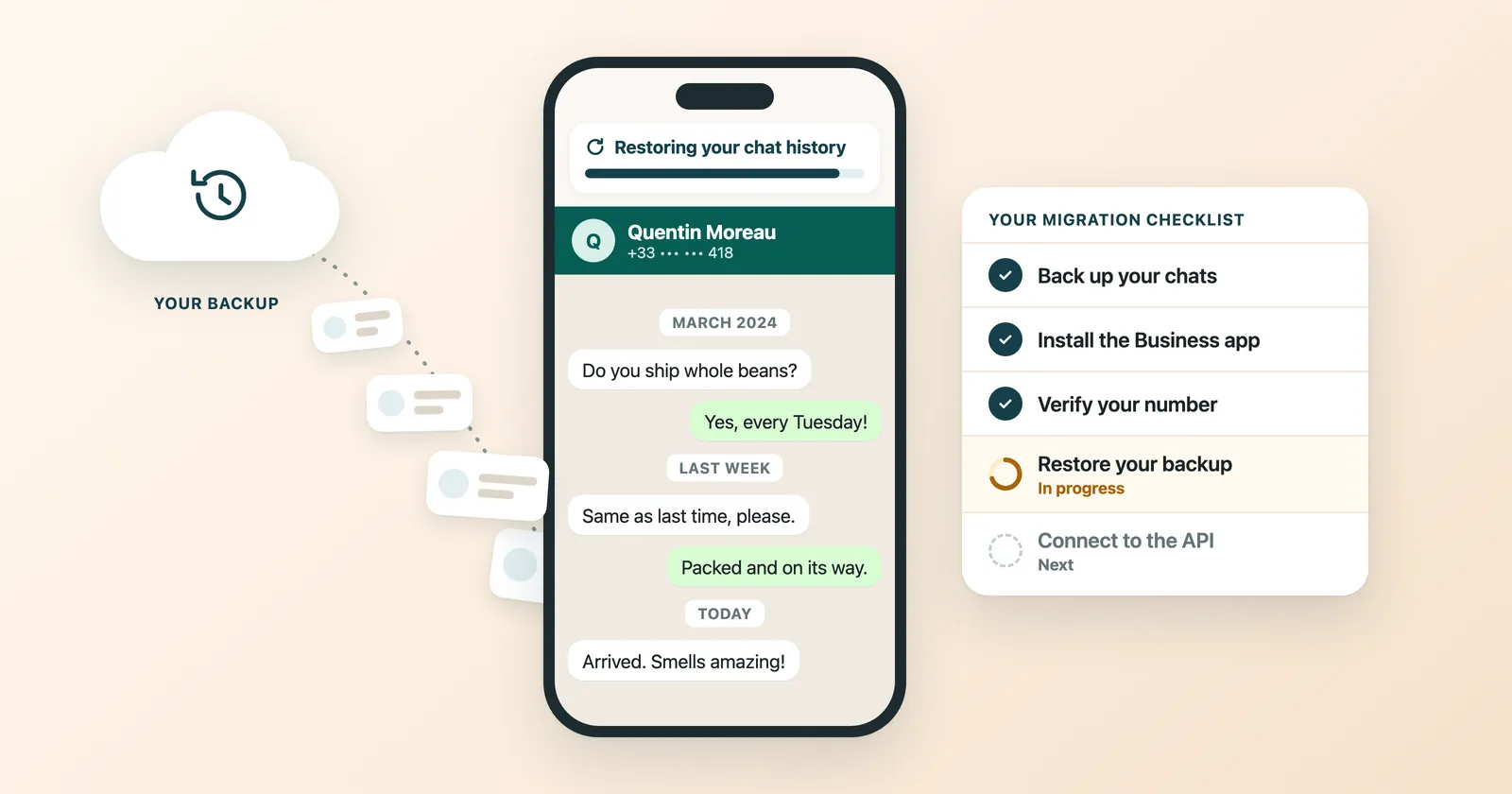
This guide walks you through the process of migrating your existing WhatsApp number to the official WhatsApp Business API using WhatsTeam. The migration allows you to use advanced API features while keeping your current number and chat history.

Benefits of Migration

Migrating to the WhatsApp Business API offers several key advantages:

No Ban Risk

Official WhatsApp API integration eliminates the risk of bans and disconnections that can occur with unofficial methods.

Keep Chat History

Continue having access to all your chats and contacts on both the mobile app and WhatsTeam. Your conversation history is preserved during the migration.

Keep Current Number

Continue using your WhatsApp Business mobile app while also leveraging the official API. No need to register a new number.

Easy Setup

Complete the migration in minutes with our simple guided process. No technical expertise required.

Requirements

Before starting the migration, ensure you meet the following requirements:

1. WhatsApp Business App

You must be using the WhatsApp Business App (not the personal WhatsApp) on your phone. If you're currently using the personal WhatsApp app, you'll need to migrate to WhatsApp Business first (see the Pre-Migration section below).

Screenshot showing the WhatsApp Business App icon compared to the Personal WhatsApp icon side by side

2. Facebook Account

You need an active Facebook account linked to your business. This is required for the Meta authentication process.

3. Mobile Phone Access

You will need your mobile phone during the migration to link your current WhatsApp Business number.

Tip: The number setup process is easy and can be completed in minutes following the onboarding steps.

Pre-Migration: Personal to Business App

Skip this section if you're already using the WhatsApp Business App.

If you're currently using the personal WhatsApp app, you must first migrate to the WhatsApp Business App before proceeding with the API migration.

Follow these steps to migrate from personal WhatsApp to WhatsApp Business:

Step 1: Back up your chat history

Open WhatsApp on your phone and create a backup of your chat history:

  1. Go to Settings > Chats > Chat Backup
  2. Tap Back Up Now
  3. Wait for the backup to complete
Screenshot showing the WhatsApp chat backup screen with the Back Up Now button highlighted

Step 2: Download WhatsApp Business

Download the WhatsApp Business app from your device's app store:

Screenshot showing the WhatsApp Business app listing in the app store download page

Step 3: Verify your number

Open WhatsApp Business and verify your phone number:

  1. Open the WhatsApp Business app
  2. Accept the Terms of Service
  3. Enter your phone number
  4. Verify with the SMS code

How to verify your number in WhatsApp Business (WhatsApp FAQ)

Screenshot showing the WhatsApp Business phone number verification screen with SMS code entry

Step 4: Restore your chat backup

When prompted, restore your chat history from the backup you created:

  1. WhatsApp Business will detect your backup
  2. Tap Restore to recover your chats
  3. Wait for the restoration to complete

More Information:

Limitations to Acknowledge

Before proceeding with the migration, it's important to understand the operational limitations. The following features will NOT be available in WhatsTeam after migration, but WILL continue to work on the WhatsApp Business mobile app and WhatsApp Web/Desktop.

1. Groups Messaging

Groups management and messaging will only be available via the mobile app. You cannot send or receive group messages through the API.

2. Channels Messaging

WhatsApp Channels messaging will only be available via the mobile app.

3. User Status (Stories)

Viewing and posting status updates will only be available via the mobile app.

4. Template Message Pricing

Meta charges for pre-approved template messages sent via the API. Certain restrictions and additional costs apply to outbound messages in some scenarios.

5. Linked Devices Disconnection

Existing linked devices (WhatsApp Web/Desktop) will be disconnected during the migration. You can reconnect them after the migration is complete.

6. Irreversible Process

Important: The migration to the WhatsApp Business API is a one-way process and cannot be reversed. Once migrated, the number will remain on the official WABA connection in WhatsTeam.

More Information:

Migration Steps

Once you've confirmed the requirements and acknowledged the limitations, you're ready to start the migration.

Step 1: Start the Migration

Navigate to the WABA migration page in the app and click "Let's begin" to start the process.

Screenshot showing the WABA migration page with the start migration button and benefits overview
Screenshot showing the intro and benefits screen with the Lets begin button to start migration

Step 2: Review Requirements

Confirm that you meet all the requirements and click "Continue".

Screenshot showing the requirements checklist screen with the Continue button at the bottom

Step 3: Acknowledge Limitations

Read and acknowledge each limitation by clicking on each item. All limitations must be acknowledged to proceed.

Screenshot showing the limitations checklist with all items checked and ready to proceed

Step 4: Confirm and Start

Review the important notes and click "Start Migration" to begin the Meta Connect process.

Screenshot showing the confirmation screen with important notes and the Start Migration button

Important notes before starting:

  • All linked devices will be disconnected
  • You can reconnect them after the migration is complete
  • Simply follow the steps in the popup window until finished
  • Do not close the window during the process

Step 5: Complete Meta Authentication

A Meta Connect window will appear. Follow the authentication steps:

  1. Log in with your Facebook account
  2. Select or create your WhatsApp Business Account
  3. Choose the phone number to connect
  4. Complete the verification process
Screenshot showing the Meta Connect iframe popup window for Facebook authentication during migration
Screenshot showing the Facebook account login page during the WhatsApp Business API migration process

Step 6: Enter Business Information

When prompted, enter your business details:

  • Business name: Must match the name on your registration documents (important for future business verification)
  • Website: Enter your business website, or select "My business does not have a website" if applicable
Screenshot showing the business information form with fields for business name and website URL
Screenshot showing the second part of the business information form with additional details

Step 7: Enter your Phone number

When prompted, enter your WhatsApp Business phone number. Select your country code and type your number in the field provided. This step is required to link your number to the WhatsApp Business API.

Screenshot showing the phone number entry form with country code dropdown and number field
Screenshot showing the phone number confirmation step during WhatsApp Business API setup

You will also see a message about connecting your existing WhatsApp Business app. This means your account information (such as phone number, contacts, chats, and chat history) may be shared to enable the migration. Your data will be managed securely by Meta.

Click Following to continue.

Screenshot showing the WhatsApp Business app connection consent screen with the Following button

Step 8: Migration Complete

Once the process is complete, you'll see a success confirmation. Your number is now connected to the WhatsApp Business API!

Screenshot showing the success confirmation screen after completing the WhatsApp Business API migration

Close the Facebook window and go back to the app window. You will see a success message like this:

Screenshot showing the success message in the WhatsTeam app after completing the migration process

What Happens After Migration

After successfully migrating your number:

Your mobile app continues to work normally

You can still use the WhatsApp Business app on your phone for one-to-one messaging, groups, channels, and status updates.

Messages are synchronized

Messages are synced between the platform and your phone. Messages sent via the API appear in your WhatsApp Business App, and messages received on your phone appear in the app.

Advanced features are now available

You can now use:

  • Bulk messaging campaigns
  • Automated chatbots and flows
  • Team inbox collaboration
  • API integrations
  • Message templates
  • Analytics and reporting

Reconnect linked devices

If you had WhatsApp Web or Desktop connected, you'll need to reconnect them:

  1. Open WhatsApp Business on your phone
  2. Go to Settings > Linked Devices
  3. Tap Link a Device
  4. Scan the QR code on WhatsApp Web/Desktop

Troubleshooting

Disconnect from a Previous WABA Provider

If your number is already connected to another Business Solution Provider (BSP), you must disconnect it before migrating to WhatsTeam. WhatsApp does not support using the same phone number across multiple integrations simultaneously.

For numbers using Coexistence (WhatsApp Business App + Cloud API)

You need to disconnect from both Meta Business Suite and the WhatsApp Business App:

Step 1: Remove access in Meta Business Suite

  1. Log in to Meta Business Suite using your business credentials
  2. Click on Settings (usually located in the bottom left corner)
  3. Under the Accounts section, click on WhatsApp accounts
  4. Select the WhatsApp Business App in question and open the Partners tab
  5. Click Manage next to your current BSP
  6. In the pop-up window, click Remove access

Step 2: Disconnect from the WhatsApp Business App

  1. Open the WhatsApp Business App on your phone
  2. Go to Settings > Account > Business platform
  3. Tap on the partner/provider you want to disconnect
  4. Select Disconnect
Screenshot showing WhatsApp Business App Settings then Account then Business platform disconnect options

For numbers registered exclusively for Cloud API (non-coexistence)

If your number was registered only for Cloud API without the WhatsApp Business App:

  1. Log in to Meta Business Suite using your business credentials
  2. Click on Settings (usually located in the bottom left corner)
  3. Under the Accounts section, click on WhatsApp accounts
  4. Select the WABA associated with the number you want to delete
  5. Click WhatsApp Manager
  6. Locate the number you wish to remove and click the trash can icon to delete it

Note: After disconnecting, it may take a few hours for the data to fully refresh. Once the changes are in place, you'll be able to connect your number to WhatsTeam.

Migration failed or timed out

If the migration fails or times out:

  1. Ensure you have a stable internet connection
  2. Check that your Facebook account is in good standing
  3. Verify that your WhatsApp Business App is up to date
  4. Try again from the beginning

Messages not syncing

If messages aren't appearing in both places:

  • Ensure synchronization has completed
  • Check that you shared conversation history during setup
  • Remember that media older than 14 days cannot be synchronized
  • New messages should sync automatically

Can't find the migration option

The migration option is available for numbers that are currently using the WhatsApp Business App and have not yet been connected to the official API. Navigate to:

  1. Go to your device settings in WhatsTeam
  2. Look for the "Migrate to WABA" option

Frequently Asked Questions

Can I revert the migration after completing it?

No. The migration to WhatsApp Business API is irreversible. Once your number is connected via the official WABA, it cannot be reverted to using the WhatsApp Business App alone in WhatsTeam.

Will I lose my contacts?

No. Your contacts remain on your phone and in the WhatsApp Business App. Contacts that have been synced to WhatsTeam will also be preserved.

How long does the migration take?

The migration process typically takes 5-10 minutes. Message synchronization may take longer depending on your chat history size.

Is this available in all countries?

The Coexistence feature is not available for businesses in Nigeria and South Africa (as identified by the Business App phone number).

What about message throughput?

Numbers using Coexistence have a fixed throughput of 5 messages per second to remain compatible with the WhatsApp Business app.
Related Articles

Ready to get started?

Try WhatsTeam free today