AI Chatbots5 min read
I Connected My WhatsApp to ChatGPT and Barely Touch It Now
Oct 29, 2026Read Article →
You can connect your WhatsApp to an AI assistant like ChatGPT or Claude and just tell it what to do — reply to unread chats, send updates, summarize the day. No code. Here's how it works and how to set it up in minutes.
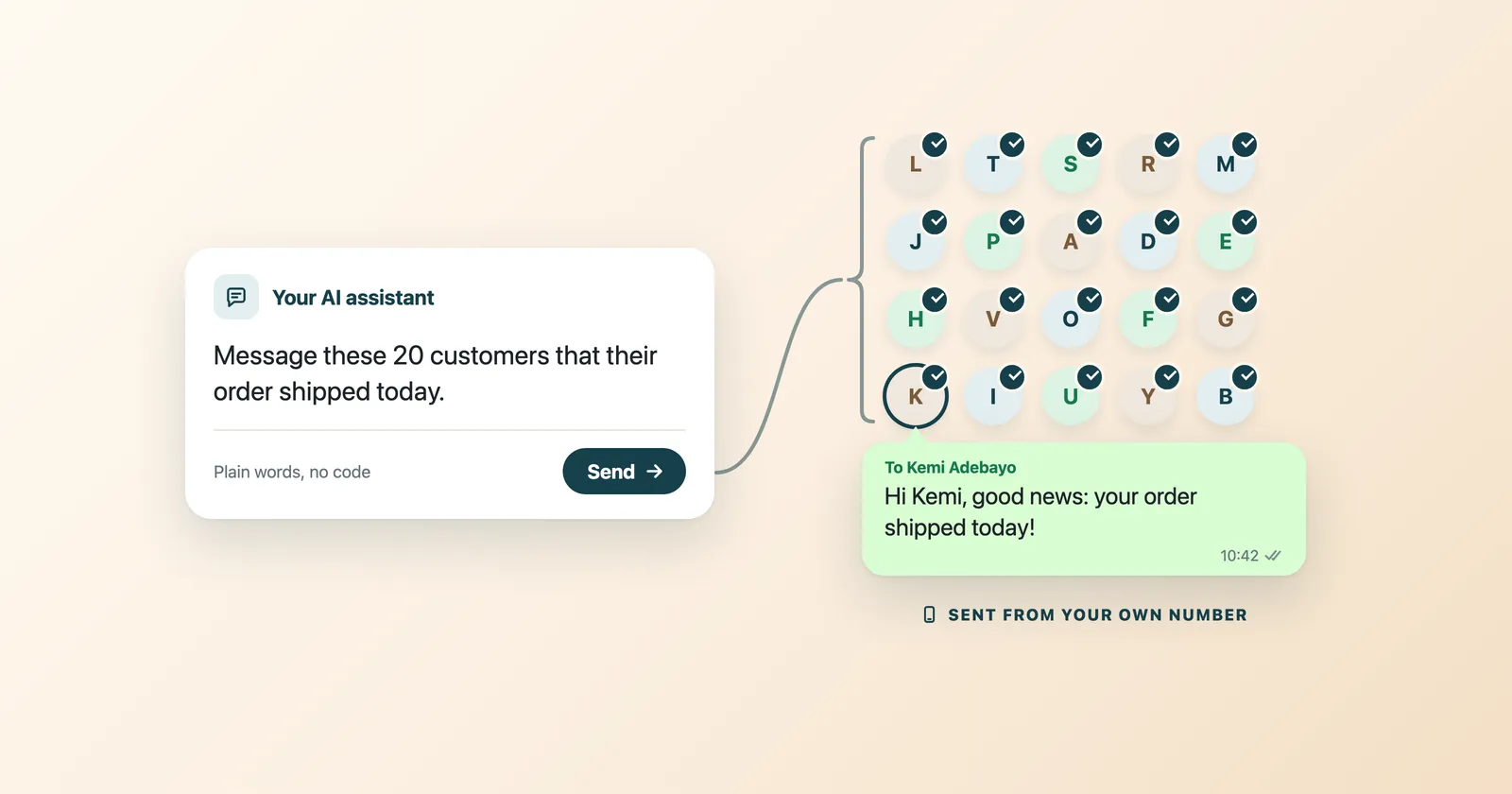
You can now connect your WhatsApp to an AI assistant — ChatGPT, Claude, or any AI agent — and simply tell it what to do in plain language: "Reply to my unread chats," "Send this update to these customers," "Summarize today's conversations." It reads, drafts, and sends real messages from your WhatsApp. No code, no new app to learn.
If you run any part of your business over WhatsApp, this is the shortcut you've been waiting for. Below is exactly what becomes possible, what you need, and how to turn it on in a few minutes.
It means the AI you already talk to every day can now reach your real WhatsApp account and do things for you — read your chats, draft replies, send messages, and pull reports — all from a normal chat window.
Think of it like connecting your email to Gmail. Once it's linked, you stop copy-pasting between apps. You just ask, and it happens.
The technical piece that makes this work is called MCP — but you don't need to understand a single word of it. In plain terms: MCP is the bridge that lets an AI assistant control your WhatsApp. WhatsTeam runs that bridge for you, so any MCP-capable AI (Claude, ChatGPT, and more) can operate your WhatsApp safely.
Once connected, your AI assistant can handle the repetitive parts of WhatsApp for you. Real things you can ask for, in plain English:
The key word is send. You're not just asking questions about your chats — the AI can actually take action, and the message goes out from your real WhatsApp number.
Yes, completely. You decide how much the AI does on its own.
It acts when you ask it to. Think of it as a very fast assistant sitting next to you — not an autopilot running loose. And if you do want hands-off automatic replies 24/7, WhatsTeam offers that as a separate built-in feature too.
Just two things:
This is exactly what WhatsTeam provides. WhatsTeam connects your number on the official WhatsApp Business API and exposes an MCP server (api.whats.team), so any MCP-capable AI — Claude, ChatGPT, or your own agent — can run your WhatsApp. You get the official API, a shared team inbox, automation, an AI assistant, and a built-in CRM, all in one place.
The whole thing takes about five minutes, and there's nothing to install.
YOUR_API_KEY:hljs json{
"mcpServers": {
"whatsteam": {
"type": "http",
"url": "https://api.whats.team/mcp?key=YOUR_API_KEY"
}
}
}
That's it. From now on, your AI can run your WhatsApp on command. For a step-by-step version with Claude specifically, see our guide on how to connect WhatsApp to Claude AI.
Any AI that supports MCP connectors. The most popular right now:
Because WhatsTeam speaks the open MCP standard, you're not locked into one AI. Pick the assistant you already like and point it at your WhatsApp.
WhatsTeam uses simple flat pricing — $29, $69, or $119 per month — with zero per-message markup. You pay Meta's standard message rates and nothing extra on top. No surprise fees, no charge for connecting an AI, no per-seat penalty for adding your team. You can see the plans on the pricing page.
Compared with providers that quietly add a markup on every message, a flat plan with no markup is usually cheaper the moment you send at any real volume. If you're still weighing options, our guide to the best WhatsApp Business API provider breaks down what to compare. You can also explore everything included on the features page.
Can I connect WhatsApp to ChatGPT or Claude without code? Yes. With WhatsTeam you paste one connection link into your AI's connector settings, and it can immediately read and send WhatsApp messages. No programming required.
Does this work with the WhatsApp app on my phone? Not directly — an AI can't safely control the consumer WhatsApp app. You need the official WhatsApp Business API, which WhatsTeam sets up for you. Your customers still see messages arrive in a normal WhatsApp chat.
Will the AI send messages without my permission? Only if you tell it to. You can have it draft replies and wait for your approval, or send on command. You're always in control.
Which AI assistants are supported? Any AI that supports MCP connectors, including Claude and ChatGPT, plus custom agents built on the API. WhatsTeam uses the open MCP standard, so you're not tied to one provider.
Is this the same as an auto-reply bot? It's more flexible. This lets you tell the AI what to do whenever you want. If you also want fully automatic replies 24/7, WhatsTeam includes that as a separate feature.
How long does setup take? About five minutes. Create an account, connect your number, paste your API key into your AI tool, and ask it to list your chats.
You can connect your WhatsApp to ChatGPT, Claude, or any MCP-capable AI agent and simply tell it what to do — reply, draft, triage, send, and report — with no code. All you need is the official WhatsApp Business API and a platform that exposes an MCP server. WhatsTeam gives you both, plus a flat price with no per-message markup, and you can be live in about five minutes.

