How to Connect WhatsApp to Your CRM: Complete Integration Guide 2026
Connect WhatsApp to HubSpot, Salesforce, Pipedrive or Zoho CRM with the WhatsTeam n8n node or API: what works today, a worked example and common fixes.
Last updated: October 20, 2026 · 7 min read
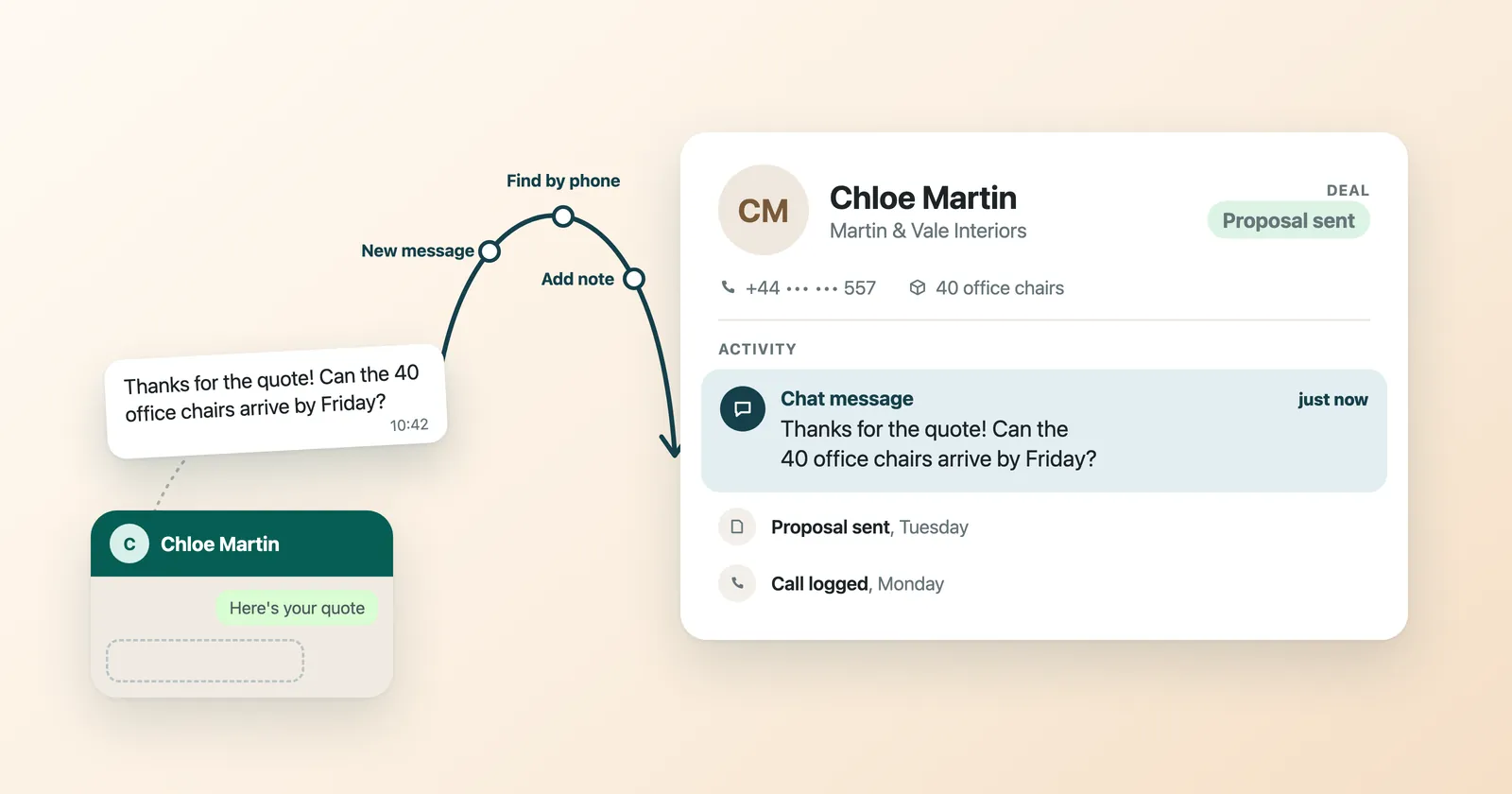
Your sales team closes deals on WhatsApp. Your CRM tracks the deals. But unless someone copies the conversation across, the CRM never sees what the customer actually said, and the WhatsApp side never hears when a deal moves.
This guide shows what you can connect between WhatsTeam and your CRM today, and exactly how. One thing up front, because it saves you time: WhatsTeam doesn't have a one-click, built-in connector for any CRM. What it has is an open API, webhooks and an official node for n8n, the automation tool. With them you can connect WhatsApp to HubSpot, Salesforce, Pipedrive, Zoho CRM or any other CRM that has an API, by building a small workflow once. It does take someone who can run n8n on a server or work with an API, and this guide tells you exactly what that involves.
What You Can Automate Between WhatsApp and Your CRM
Three workflows are worth starting with:
- Log conversations on the customer's record. A customer writes on WhatsApp, or your agent replies; the message is added to their contact in the CRM as a note or activity, so the whole team sees the context.
- Capture new leads. Someone you've never spoken to sends a first message; your workflow creates them as a person or lead in the CRM, and a deal if you want one.
- Message customers when the CRM changes. A deal reaches "Proposal sent" and the customer gets a WhatsApp template message with the next step.
Each one runs on its own once it's set up. You decide what it does: which messages to log, where, and what to send.
Your Two Ways to Connect
| Route | What you need | Best for |
|---|---|---|
| n8n with the WhatsTeam node | A self-hosted n8n, a WhatsTeam API key and your CRM connected in n8n (an API token or app, depending on the CRM) | Teams with someone who can run n8n and build a visual workflow |
| WhatsTeam API and webhooks | A developer | Custom CRMs, in-house systems and full control |
n8n with the WhatsTeam node
n8n is an automation tool where you build workflows by connecting blocks ("nodes"). WhatsTeam publishes an official community node, n8n-nodes-whatsteam, with two parts:
- WhatsTeam Trigger, which starts a workflow when something happens on your WhatsApp number: a new incoming message, a message your team sent, a message that was read or failed to deliver, a chat that was assigned or resolved, a contact that changed.
- WhatsTeam, which does things: send text, media or template messages, check whether a number is on WhatsApp, manage contacts and chats.
n8n has its own nodes for the main CRMs, so the WhatsApp side and the CRM side meet in one workflow.
There's one requirement to know before you start: the WhatsTeam node is a community node that n8n hasn't verified, and n8n only allows those on a self-hosted n8n (on your own server, or with a hosting provider that lets you install community nodes), not on n8n Cloud. If you don't run servers, a freelancer who knows n8n can set this up for you. Budget for the server or hosting plan as well, and for someone to keep n8n and the node up to date.
WhatsTeam API and webhooks
If you have a developer, the WhatsTeam API lets any system send messages and read chats and contacts, and webhooks send the events you pick (new messages, read and failed updates, chat changes) to a URL you choose. That's the route for a CRM without an n8n node, or when you want the integration inside your own software. You'll find your API key under Developers › API keys in your WhatsTeam account.
What about Zapier or Make? WhatsTeam isn't listed in either app directory. Their webhook and HTTP steps can still call the WhatsTeam API without a server of your own, but you set up each request by hand from the API documentation.
Which CRMs n8n Covers
n8n's built-in CRM nodes decide how much you can do without extra work:
| CRM | Can start a workflow when the CRM changes | How to find the customer | Where to log the WhatsApp message |
|---|---|---|---|
| HubSpot | Yes (needs a HubSpot developer account and app) | Search contacts | Create an engagement on the contact |
| Salesforce | Yes | A SOQL search on Contacts or Leads | Create a task, or add a note to the contact or lead |
| Pipedrive | Yes | Search all persons | Create a note or an activity on the person |
| Zoho CRM | No (actions only) | No search by phone in the node: get all contacts or leads and filter them in n8n, or use the HTTP Request node with Zoho's API | No note or task step in the node: use n8n's HTTP Request node with Zoho's API |
Other tools in your stack, such as Microsoft Dynamics CRM, monday.com, Notion, Airtable and Google Sheets, also have n8n nodes. Check the n8n integrations directory for yours.
Example: Log Your WhatsApp Conversations in Pipedrive
Here's the shape of the workflow, step by step. It's an outline to build in your own n8n, not a downloadable, tested template: field names can change between n8n versions, so follow the labels you see on screen.
Step 1: Install the WhatsTeam node
In your self-hosted n8n, go to Settings › Community Nodes, click Install, enter n8n-nodes-whatsteam, tick the box confirming you understand the risks of installing unverified code, and click Install (you need the Owner or Admin role in n8n). Then add a credential of type WhatsTeam API Key with your API key.
Step 2: Start the workflow on new messages
Add a WhatsTeam Trigger node and, under Events, choose New Inbound Message Received. Add New Outbound Message Delivered too if you also want the messages your number sends in the CRM: your agents' replies, but also campaign and automatic messages. n8n gives you a webhook URL and the node registers it in WhatsTeam for you. That URL must be reachable from the internet so WhatsTeam can call it.
Step 3: Find the customer in Pipedrive
Add a Pipedrive node with Search all persons, searching by the customer's number: the sender on incoming messages (fromNumber in the trigger's output) and the recipient on your team's replies (toNumber). WhatsTeam sends numbers with the country code and no spaces (for example +447700900123), so save them in Pipedrive the same way. Step 5 shows you whether the search finds them.
Step 4: Log the message, or create the lead
In the search node's Settings, turn on Always Output Data, so the workflow carries on even when nobody is found. Then add an If node:
- A person was found: add a Pipedrive node with Create a note, linked to that person, with the message text, time and direction.
- Nobody was found and the message is incoming (a new lead): add a Pipedrive node with Create a person using the WhatsApp name and number, then Create a deal for that person if you track every enquiry as a deal, and then the note. Outgoing messages to unknown numbers should skip this branch, or a campaign would add everyone it reaches to Pipedrive. The trigger's output tells you the direction:
flowisinboundoroutbound.
Step 5: Test it with a pretend customer
Save a test person in Pipedrive with your own mobile number, start a test run of the workflow in n8n, send a WhatsApp message to your WhatsTeam number from that phone, and open the person in Pipedrive: the note should be there. Once it works, publish the workflow (older n8n versions call this activating it) and delete the test person.
To hear about it if the workflow ever stops, add a small error workflow in n8n that starts with the Error Trigger node and emails you, and choose it in this workflow's settings.
The same shape works for the other CRMs: swap the Pipedrive nodes for the search and log steps in the table above.
The Other Direction: WhatsApp Messages From CRM Events
To message customers when something changes in the CRM, turn the workflow around:
- Start with the CRM's trigger node (HubSpot, Salesforce and Pipedrive have one), for example when a deal is updated, and add an If node that continues only when the deal has just moved into the stage you care about, not every time it's edited while in that stage; otherwise the customer gets the template again with each later change.
- Get the phone number of the contact or person linked to the deal with the CRM node.
- Add the WhatsTeam node with Send template message to that number.
Templates are needed because WhatsApp only allows free-form messages within 24 hours of the customer's last message, and Meta must approve each template before you can send it, so create yours before you build the workflow. Zoho CRM has no trigger node, so for Zoho you'd run the workflow on a schedule and look for changes.
Common Issues (and Fixes)
Customers aren't found in the CRM
Phone numbers are the link between WhatsApp and the CRM. Save them with the country code, the way WhatsTeam sends them, and avoid keeping the same number on two records. If your CRM has numbers in mixed formats, clean them up before you switch the workflow on.
Messages aren't reaching the workflow
Check that the workflow is published (active, in older n8n versions) and that its webhook URL is public. A local n8n on your laptop can't receive WhatsTeam's events, so run it on a server for real use.
Template messages aren't sent
Check that the template is approved in your WhatsApp Business account, that the variables you fill in match the template, and that the phone number is valid on WhatsApp.
Duplicates in the CRM
If your workflow creates new contacts, always search first, create only when nothing is found, and let only one workflow create them. Even then, a new customer who sends several messages in a row can end up on two records, because each message starts its own run and two runs can search before either has created the person. Check new leads now and then and merge any duplicates in the CRM.
Frequently Asked Questions
Does WhatsTeam have a built-in CRM connector?
No. You connect a CRM yourself, through the WhatsTeam node for n8n or through the API and webhooks. Both work with your WhatsTeam numbers on the official WhatsApp Business API.
Do I need technical skills?
For n8n, you need someone comfortable building a visual workflow and running a self-hosted n8n (or a hosting provider that allows community nodes). For the API route, you need a developer.
Can I use n8n Cloud?
Not with the WhatsTeam node: n8n Cloud only offers community nodes that n8n has verified, and this one isn't. On n8n Cloud you can still connect WhatsTeam with n8n's built-in Webhook and HTTP Request nodes and the WhatsTeam API, but you set up each step by hand.
Is my data safe?
Your workflow moves only the data you map. Messages go from WhatsTeam to your n8n's webhook URL and from there into the CRM fields you choose. Your API key is stored in your n8n's credentials, so whoever runs that n8n (you or your hosting provider) can use it: treat it like a password, run n8n over HTTPS and keep the webhook URL private.
Get Started
Pick the workflow your team needs most, usually logging conversations, build it in n8n, test it with a pretend customer, then add the next one.